> ## Documentation Index
> Fetch the complete documentation index at: https://docs.zenrows.com/llms.txt
> Use this file to discover all available pages before exploring further.
# How to Integrate Lindy with ZenRows
> Connect ZenRows with Lindy AI to automate web scraping workflows. Set up intelligent data extraction using Lindy assistants without coding.
Automate web scraping workflows by connecting ZenRows with Lindy's AI assistant platform. This integration extracts and processes web data through intelligent automation, eliminating manual data collection tasks.
## What Is Lindy?
Lindy creates AI assistants that automate repetitive business tasks. When you integrate Lindy with ZenRows, you can scrape websites automatically and use the extracted data to trigger intelligent workflows like generating reports, updating spreadsheets, or managing sales pipelines.
## Use Cases
Here are some ways you can use ZenRows and Lindy together:
* **Competitive Analysis:** Extract competitor data and generate automated reports.
* **Lead Generation:** Scrape business directories and qualify prospects for your sales team.
* **Brand Monitoring:** Track online mentions and respond automatically.
* **Content Curation:** Collect and categorize articles for your team.
* **Market Research:** Gather and analyze property listings or market data.
## Real-World End-to-End Integration Example
This example shows how to build an automated system that monitors e-commerce products and stores the data in Google Sheets.
### Step 1: Create a new Lindy assistant
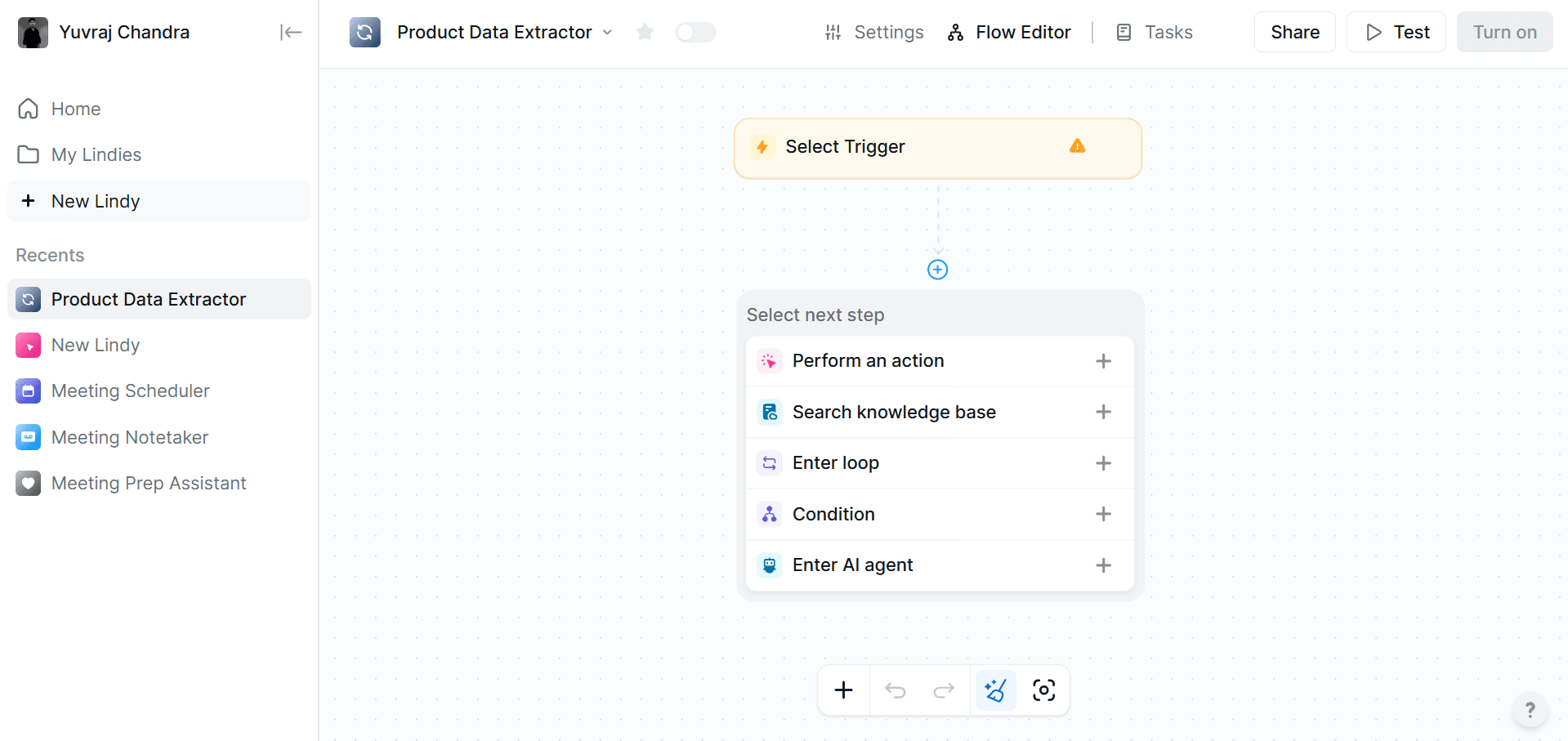
1. Log in to Lindy and open your workspace dashboard.
2. Click `+ New Lindy`, select **Start from scratch**, and name your assistant (e.g., Product Data Extractor).
 ### Step 2: Configure ZenRows integration with Lindy
1. Go to [ZenRows' Universal Scraper API Request Playground](https://app.zenrows.com/builder).
2. Input `https://www.scrapingcourse.com/ecommerce` as your target URL for scraping.
3. Enable **JS Rendering** to handle dynamic page content.
4. Configure **Output type** to **Specific Data** and navigate to the **Parsers** section.
5. Set up the CSS selector configuration: `{ "name": ".product-name" }`.
6. Navigate to the cURL tab and copy the generated HTTP request URL. It'll look like this:
```bash theme={null}
https://api.zenrows.com/v1/?apikey=&url=https%3A%2F%2Fwww.scrapingcourse.com%2Fecommerce%2F&js_render=true&css_extractor=%257B%2522name%2522%253A%2522.product-name%2522%257D
```
The CSS selectors provided in this example (`.product-name`) are specific to the page used in this guide. Selectors may vary across websites. For guidance on customizing selectors, refer to the [CSS Extractor documentation](/universal-scraper-api/features/css-extractor). If you're having trouble, the [Advanced CSS Selectors Troubleshooting Guide](/universal-scraper-api/troubleshooting/advanced-css-selectors) can help resolve common issues.
1. Within your Lindy assistant, select **Perform an action** from the available options.
### Step 2: Configure ZenRows integration with Lindy
1. Go to [ZenRows' Universal Scraper API Request Playground](https://app.zenrows.com/builder).
2. Input `https://www.scrapingcourse.com/ecommerce` as your target URL for scraping.
3. Enable **JS Rendering** to handle dynamic page content.
4. Configure **Output type** to **Specific Data** and navigate to the **Parsers** section.
5. Set up the CSS selector configuration: `{ "name": ".product-name" }`.
6. Navigate to the cURL tab and copy the generated HTTP request URL. It'll look like this:
```bash theme={null}
https://api.zenrows.com/v1/?apikey=&url=https%3A%2F%2Fwww.scrapingcourse.com%2Fecommerce%2F&js_render=true&css_extractor=%257B%2522name%2522%253A%2522.product-name%2522%257D
```
The CSS selectors provided in this example (`.product-name`) are specific to the page used in this guide. Selectors may vary across websites. For guidance on customizing selectors, refer to the [CSS Extractor documentation](/universal-scraper-api/features/css-extractor). If you're having trouble, the [Advanced CSS Selectors Troubleshooting Guide](/universal-scraper-api/troubleshooting/advanced-css-selectors) can help resolve common issues.
1. Within your Lindy assistant, select **Perform an action** from the available options.
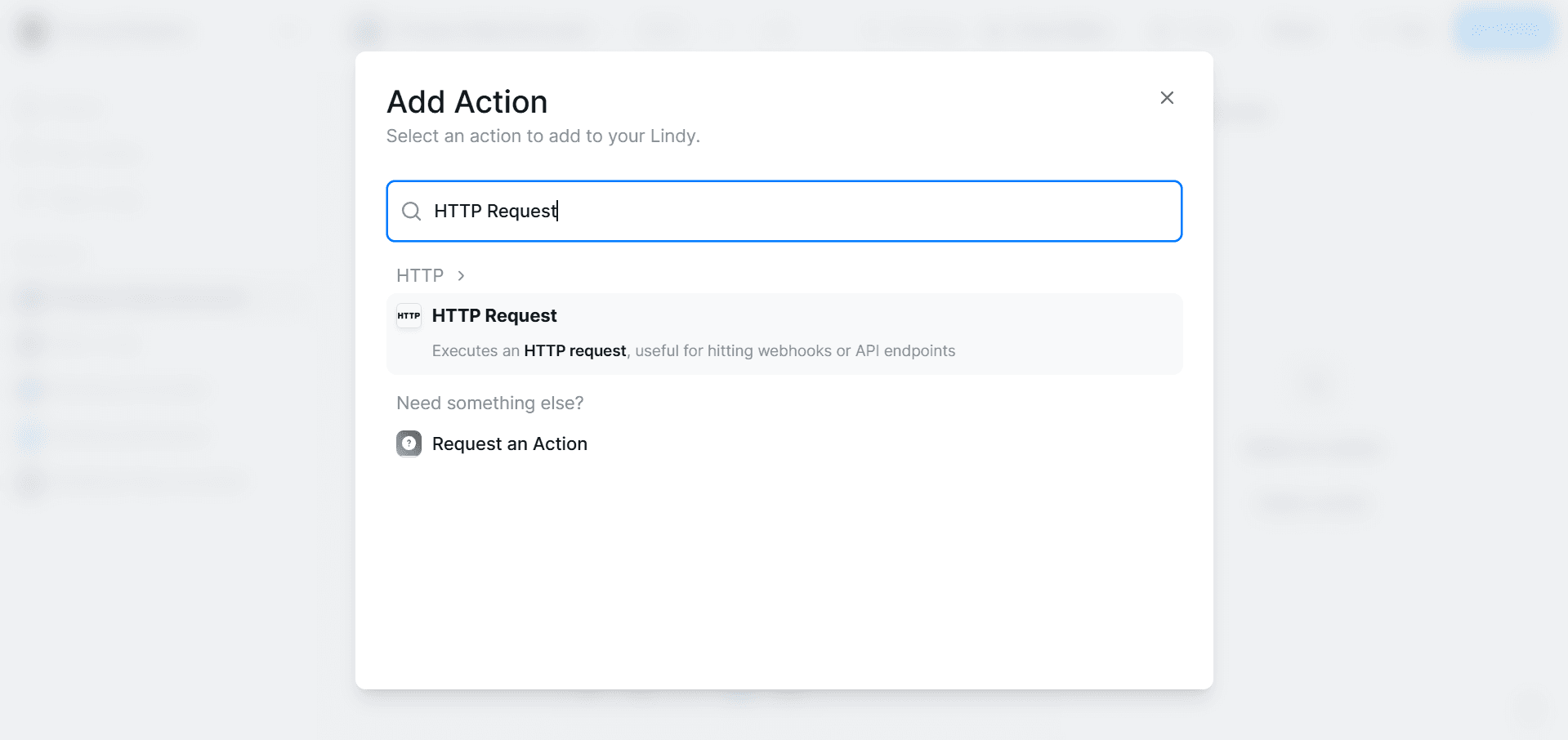
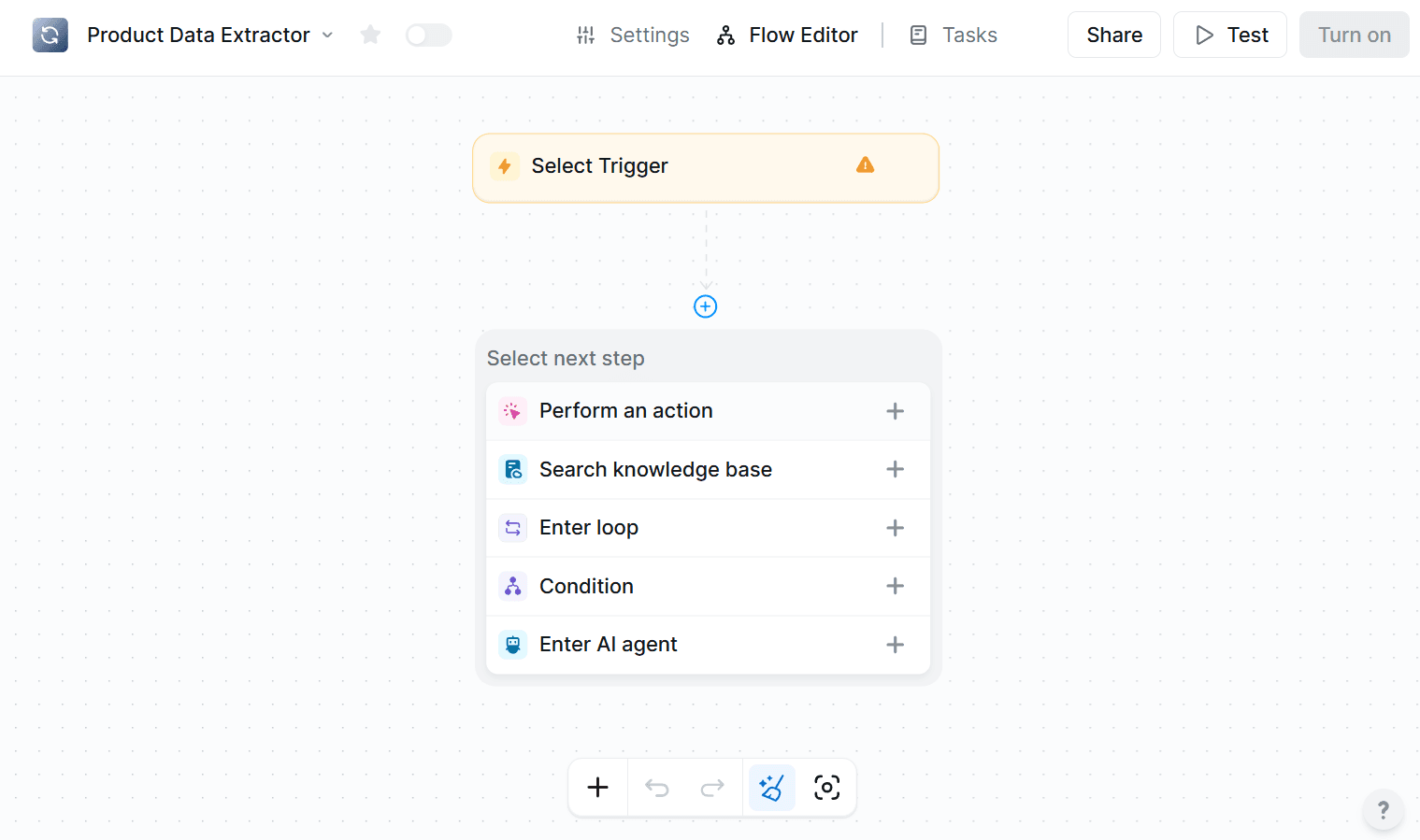 2. Choose **HTTP Request** action from the action menu.
 3. In the **Url** field, select the **Set Manually** option.
4. Enter the URL generated from your ZenRows configuration.
3. In the **Url** field, select the **Set Manually** option.
4. Enter the URL generated from your ZenRows configuration.
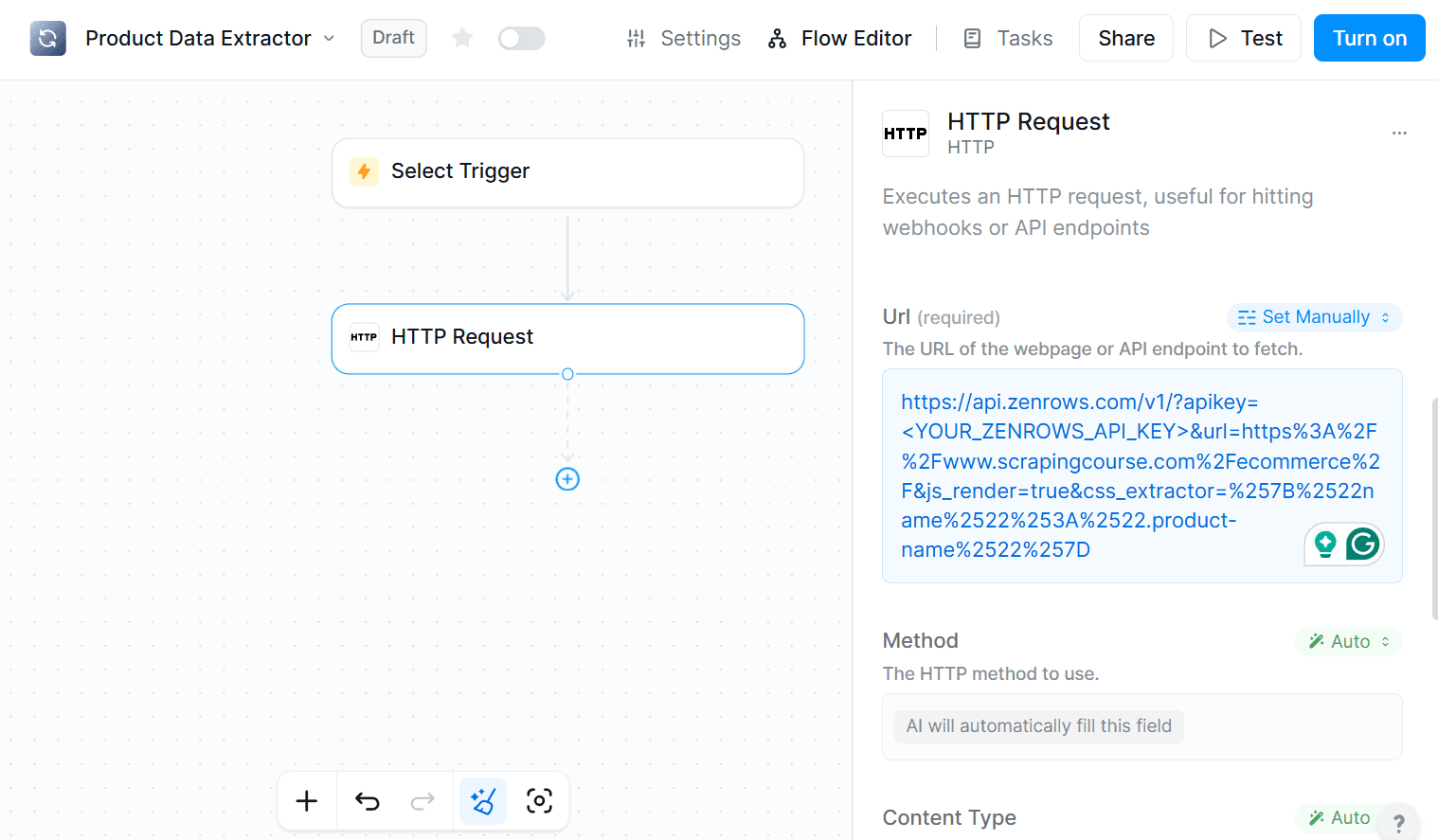 5. Change the request type for the remaining fields to **Auto** to allow Lindy to handle the configuration automatically.
6. Delete the **Select Trigger** node and proceed directly to testing since we'll not use a trigger for this example.
7. Click `Turn on` to activate your Lindy assistant.
8. Click `Test` to verify the integration works correctly and returns the expected product name data.
### Step 3: Process and transform the scraped data
1. Click `Enter AI Agent` to add an intelligent data processing step to your workflow.
5. Change the request type for the remaining fields to **Auto** to allow Lindy to handle the configuration automatically.
6. Delete the **Select Trigger** node and proceed directly to testing since we'll not use a trigger for this example.
7. Click `Turn on` to activate your Lindy assistant.
8. Click `Test` to verify the integration works correctly and returns the expected product name data.
### Step 3: Process and transform the scraped data
1. Click `Enter AI Agent` to add an intelligent data processing step to your workflow.
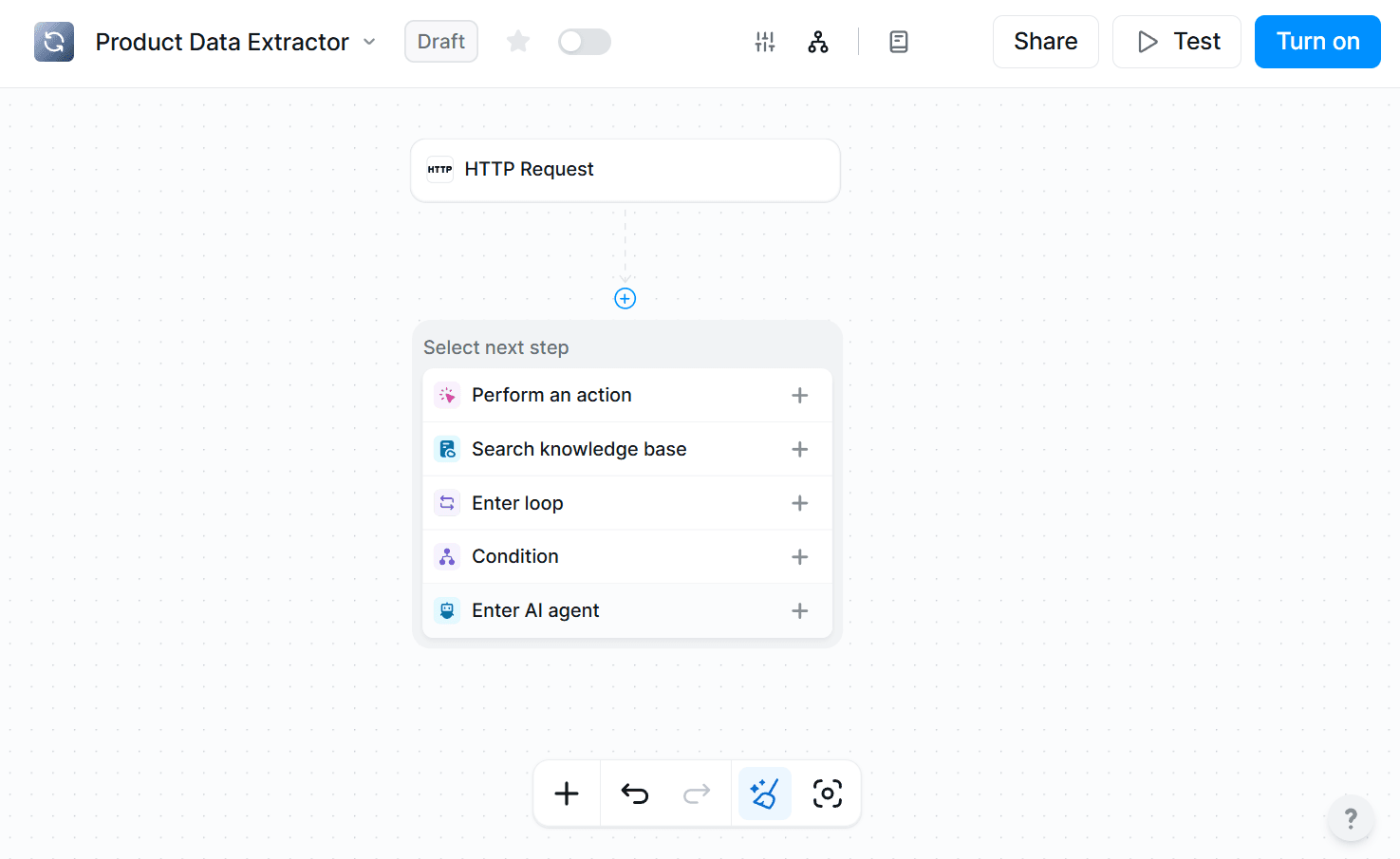 2. Enter the following prompt to help you format the extracted product names into a format suitable for spreadsheet storage:
```plaintext theme={null}
Convert the output object values into individual strings
```
3. Click `+ Add exit condition` to define when the AI agent should complete its task.
4. In the **Condition** field, enter the following prompt:
```plaintext theme={null}
You have individual values extracted from the output object
```
5. Follow the same **Turn on** and **Test** steps to verify that the AI agent properly transforms your data.
### Step 4: Save results to Google Sheets
1. Add Google Sheets' **Append rows** action to your Lindy workflow.
2. Enter the following prompt to help you format the extracted product names into a format suitable for spreadsheet storage:
```plaintext theme={null}
Convert the output object values into individual strings
```
3. Click `+ Add exit condition` to define when the AI agent should complete its task.
4. In the **Condition** field, enter the following prompt:
```plaintext theme={null}
You have individual values extracted from the output object
```
5. Follow the same **Turn on** and **Test** steps to verify that the AI agent properly transforms your data.
### Step 4: Save results to Google Sheets
1. Add Google Sheets' **Append rows** action to your Lindy workflow.
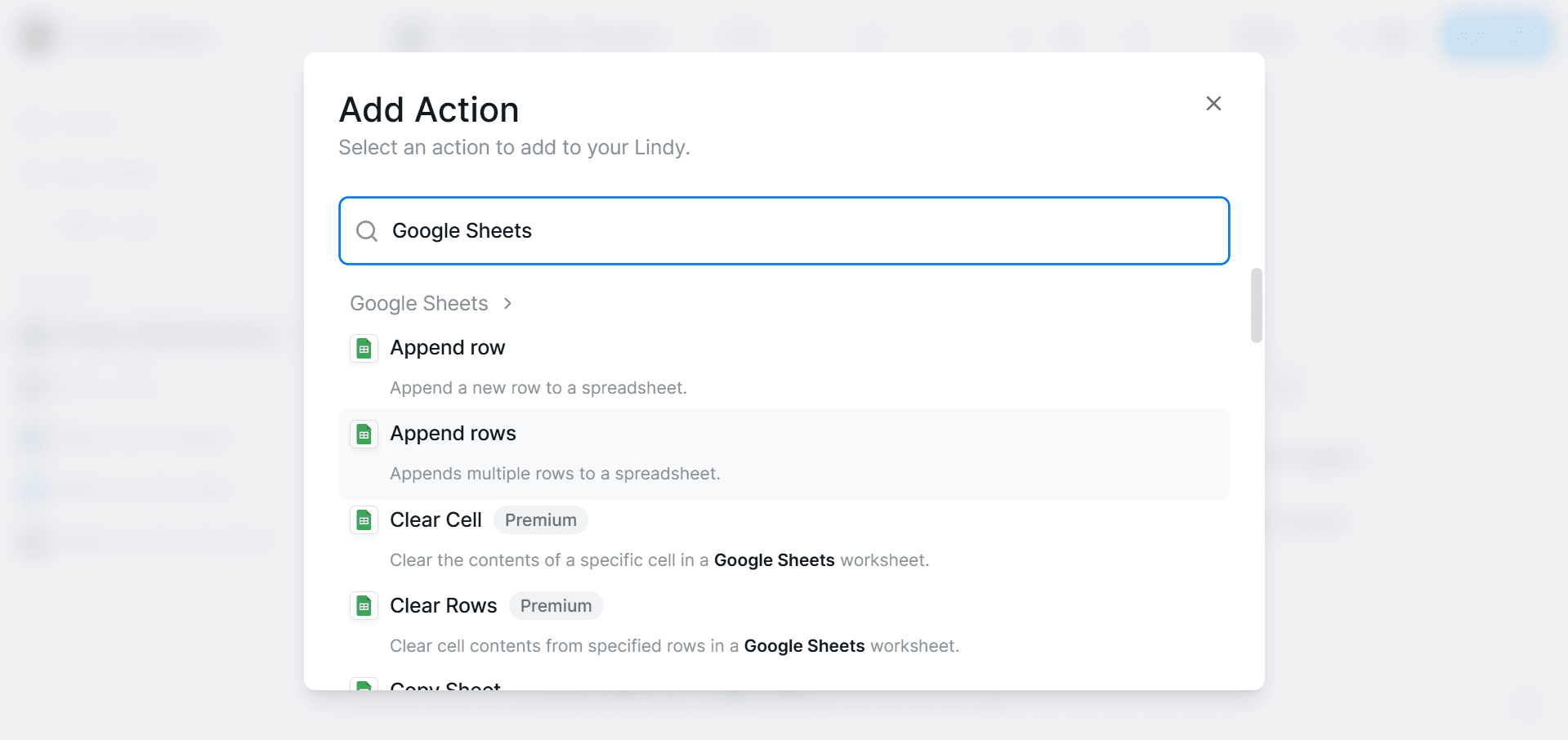 2. Connect your Google account to enable Lindy access to your spreadsheets.
3. Choose your target spreadsheet from the available options.
4. Select the appropriate **Sheet Title** where you want to store the extracted product data.
5. For the **Rows** field, click `Prompt AI` and enter the prompt:
```plaintext theme={null}
Fill the rows with individual product names received from the previous step.
```
2. Connect your Google account to enable Lindy access to your spreadsheets.
3. Choose your target spreadsheet from the available options.
4. Select the appropriate **Sheet Title** where you want to store the extracted product data.
5. For the **Rows** field, click `Prompt AI` and enter the prompt:
```plaintext theme={null}
Fill the rows with individual product names received from the previous step.
```
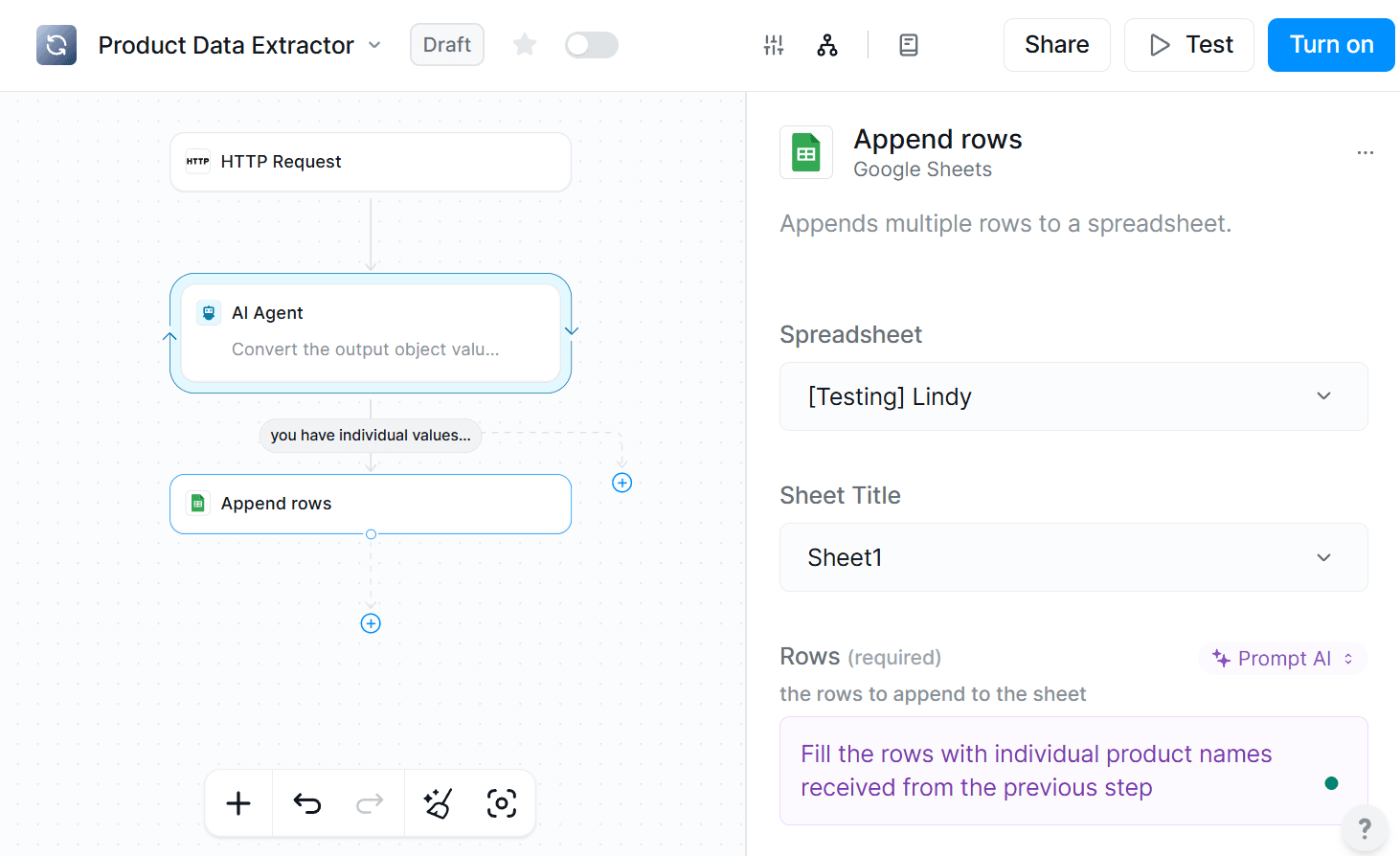 6. Follow the same **Turn on** and **Test** steps. The product names will be appended to your specified spreadsheet location.
## Troubleshooting
### AI Agent Processing Issues
* If your AI agent isn't properly converting data formats, review the prompt specificity and ensure it clearly describes the desired output structure.
* Verify that the exit condition is correctly defined. The agent should know exactly when its task is complete.
* Check the input data from the previous HTTP request step to ensure it contains the expected product information.
### Connection and Authentication Errors
* Ensure your ZenRows account has sufficient usage and isn't hitting concurrency limits during testing.
* Verify Google Sheets permissions are correctly granted when connecting your account to Lindy.
### Data Format and Output Problems
* If Google Sheets isn't receiving data in the expected format, test each step individually to isolate where the data transformation fails.
* Review the AI prompts in both the data processing and Google Sheets steps to ensure they're requesting compatible formats.
* Check that your target spreadsheet exists and the specified sheet name matches exactly.
### Request Issues
Different websites require specific configurations to retrieve content successfully. Some sites need additional parameters to handle dynamic content effectively.
**Common parameters you might need:**
* `wait` or `wait_for`: Ensures the page fully loads JavaScript-rendered elements before extraction
* `premium_proxy`: Provides high-quality proxies for reliable access
* `proxy_country`: Specifies the geographical location for the request to bypass geo-restrictions
For comprehensive troubleshooting guidance, explore [ZenRows' troubleshooting documentation](/universal-scraper-api/troubleshooting/troubleshooting-guide).
## Tips and best practices
Follow these practices when integrating Lindy with ZenRows:
1. Define Clear Objectives
* Identify your specific goals before starting. This guides your configuration and workflow design.
* Example: For e-commerce scraping, decide whether you need product names, prices, descriptions, or all three.
2. Write Precise AI Prompts
* Craft specific, goal-oriented prompts for AI agents.
* Good: "Extract product names and format them as a list."
* Avoid: "Process this data."
3. Optimize Data Transformation
* Ensure the AI agent's output format matches subsequent steps (like spreadsheet rows).
* Test different prompts to refine the transformation process.
4. Test Each Step
* Verify each workflow component individually before connecting them.
* Use Lindy's testing tools to debug issues step by step.
## Conclusion
Integrating ZenRows with Lindy automates web data extraction and streamlines your workflows. This combination eliminates manual data collection tasks and enables intelligent processing of scraped information.
## Frequently Asked Questions (FAQ)
Integrating Lindy with ZenRows lets you automate web scraping and data processing workflows. For example, you can extract product data from websites and automatically store it in Google Sheets without manual work.
ZenRows can scrape a wide range of data, such as product details, business listings, articles, and more. The exact data depends on the website and the CSS selectors you set up.
If your CSS selectors aren't extracting the right data, use ZenRows' Parsers section to test and refine selectors. For more help, see the [Advanced CSS Selectors Troubleshooting Guide](/universal-scraper-api/troubleshooting/advanced-css-selectors).
Review your prompt to make sure it clearly describes the desired output. Check that your input data matches what the AI agent expects, and use Lindy's testing tools to debug the step.
Yes, Lindy supports integrations with many tools, including Google Sheets and Slack. You can combine these to build more complex workflows.
If the target website's structure changes, your CSS selectors may stop working. Regularly review and update your scraping setup to keep it working.
Yes, Lindy lets you set triggers or schedules for workflows. This is helpful for tasks like daily scraping or weekly reports.
Check Lindy's official documentation for advanced setups or contact their support teams for help with specific cases.
6. Follow the same **Turn on** and **Test** steps. The product names will be appended to your specified spreadsheet location.
## Troubleshooting
### AI Agent Processing Issues
* If your AI agent isn't properly converting data formats, review the prompt specificity and ensure it clearly describes the desired output structure.
* Verify that the exit condition is correctly defined. The agent should know exactly when its task is complete.
* Check the input data from the previous HTTP request step to ensure it contains the expected product information.
### Connection and Authentication Errors
* Ensure your ZenRows account has sufficient usage and isn't hitting concurrency limits during testing.
* Verify Google Sheets permissions are correctly granted when connecting your account to Lindy.
### Data Format and Output Problems
* If Google Sheets isn't receiving data in the expected format, test each step individually to isolate where the data transformation fails.
* Review the AI prompts in both the data processing and Google Sheets steps to ensure they're requesting compatible formats.
* Check that your target spreadsheet exists and the specified sheet name matches exactly.
### Request Issues
Different websites require specific configurations to retrieve content successfully. Some sites need additional parameters to handle dynamic content effectively.
**Common parameters you might need:**
* `wait` or `wait_for`: Ensures the page fully loads JavaScript-rendered elements before extraction
* `premium_proxy`: Provides high-quality proxies for reliable access
* `proxy_country`: Specifies the geographical location for the request to bypass geo-restrictions
For comprehensive troubleshooting guidance, explore [ZenRows' troubleshooting documentation](/universal-scraper-api/troubleshooting/troubleshooting-guide).
## Tips and best practices
Follow these practices when integrating Lindy with ZenRows:
1. Define Clear Objectives
* Identify your specific goals before starting. This guides your configuration and workflow design.
* Example: For e-commerce scraping, decide whether you need product names, prices, descriptions, or all three.
2. Write Precise AI Prompts
* Craft specific, goal-oriented prompts for AI agents.
* Good: "Extract product names and format them as a list."
* Avoid: "Process this data."
3. Optimize Data Transformation
* Ensure the AI agent's output format matches subsequent steps (like spreadsheet rows).
* Test different prompts to refine the transformation process.
4. Test Each Step
* Verify each workflow component individually before connecting them.
* Use Lindy's testing tools to debug issues step by step.
## Conclusion
Integrating ZenRows with Lindy automates web data extraction and streamlines your workflows. This combination eliminates manual data collection tasks and enables intelligent processing of scraped information.
## Frequently Asked Questions (FAQ)
Integrating Lindy with ZenRows lets you automate web scraping and data processing workflows. For example, you can extract product data from websites and automatically store it in Google Sheets without manual work.
ZenRows can scrape a wide range of data, such as product details, business listings, articles, and more. The exact data depends on the website and the CSS selectors you set up.
If your CSS selectors aren't extracting the right data, use ZenRows' Parsers section to test and refine selectors. For more help, see the [Advanced CSS Selectors Troubleshooting Guide](/universal-scraper-api/troubleshooting/advanced-css-selectors).
Review your prompt to make sure it clearly describes the desired output. Check that your input data matches what the AI agent expects, and use Lindy's testing tools to debug the step.
Yes, Lindy supports integrations with many tools, including Google Sheets and Slack. You can combine these to build more complex workflows.
If the target website's structure changes, your CSS selectors may stop working. Regularly review and update your scraping setup to keep it working.
Yes, Lindy lets you set triggers or schedules for workflows. This is helpful for tasks like daily scraping or weekly reports.
Check Lindy's official documentation for advanced setups or contact their support teams for help with specific cases.