> ## Documentation Index
> Fetch the complete documentation index at: https://docs.zenrows.com/llms.txt
> Use this file to discover all available pages before exploring further.
# How to Integrate Pipedream with ZenRows
> Build automated web scraping workflows using ZenRows and Pipedream with no coding required. Collect product data, leads, and content updates.
ZenRows simplifies web scraping, allowing you to extract data from websites. By connecting ZenRows with Pipedream, a platform for automating workflows, you can automatically collect and process data like product prices, business leads, or content updates with no coding required!
This guide will walk you through setting up a workflow to scrape a demo e-commerce product data and save it to Google Sheets.
## What Is Pipedream?
Pipedream is a serverless platform that connects APIs and automates workflows. With its event-driven architecture, you can build workflows that respond to triggers like webhooks or schedules.
When combined with ZenRows, Pipedream enables you to automate web scraping and integrate structured data into your processes.
## Use Cases
Combining ZenRows with Pipedream creates powerful automation opportunities:
* **Market Intelligence**: Extract competitor pricing and analyze trends automatically.
* **Sales Prospecting**: Scrape business directories and enrich contact data for your CRM.
* **Content Monitoring**: Track brand mentions and trigger notifications for specific keywords.
* **Research Automation**: Collect and organize articles, reports, or blog posts.
* **Property Intelligence**: Gather real estate listings and market data for analysis.
## Real-World End-to-End Integration Example
We'll build a basic end-to-end e-commerce product scraping workflow using Pipedream and ZenRows with the following steps:
* Set up a scheduled trigger to automatically track product prices at regular intervals.
* Use `https://www.scrapingcourse.com/pagination` as the target URL.
* Utilize ZenRows' Universal Scraper API to automatically extract product names and prices from the URL.
* Process and transform the scraped data.
* Save the extracted product information to Google Sheets.
### 1. Create a new workflow on Pipedream
1. Log in to your account at [https://pipedream.com/](https://pipedream.com/).
2. Access your `Workspace` and go to `Projects` in the left sidebar.
3. Click `+ New project` at the top right and enter a name for your project (e.g., "E-commerce Product Scraper").
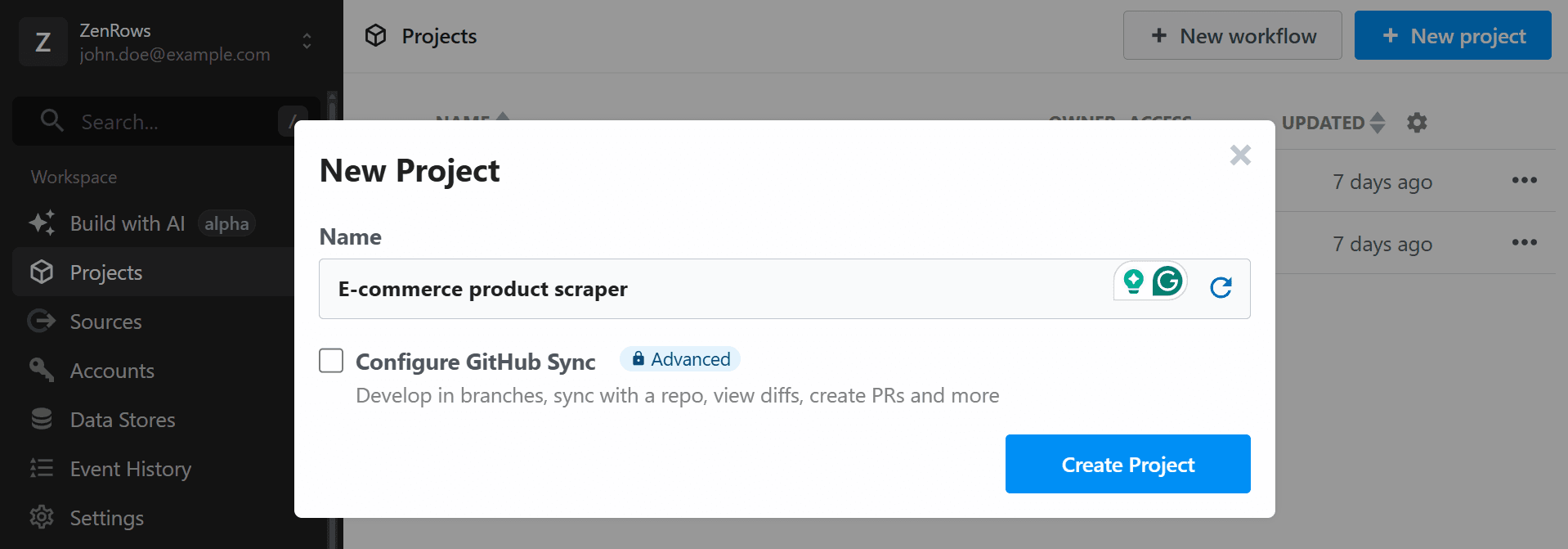 4. Click `+ New Workflow` and provide a name for your workflow (e.g., "Product name and price scraper").
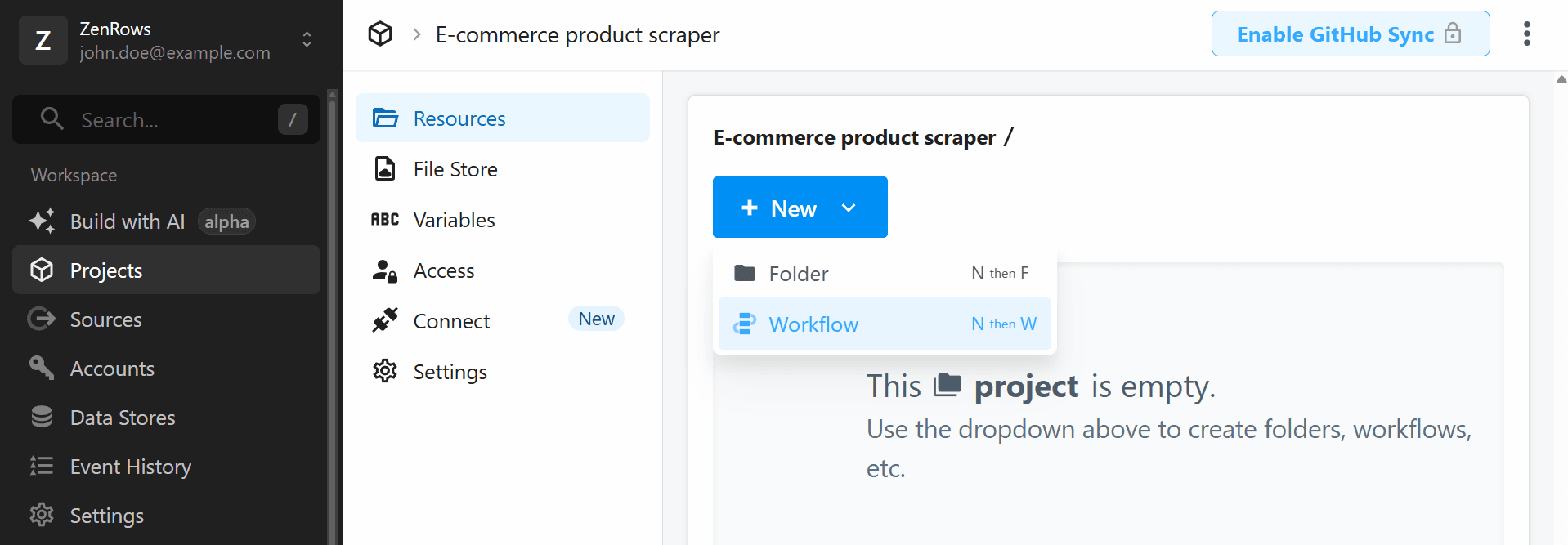 5. Click the `Create Workflow` button.
### 2. Set up a Schedule trigger
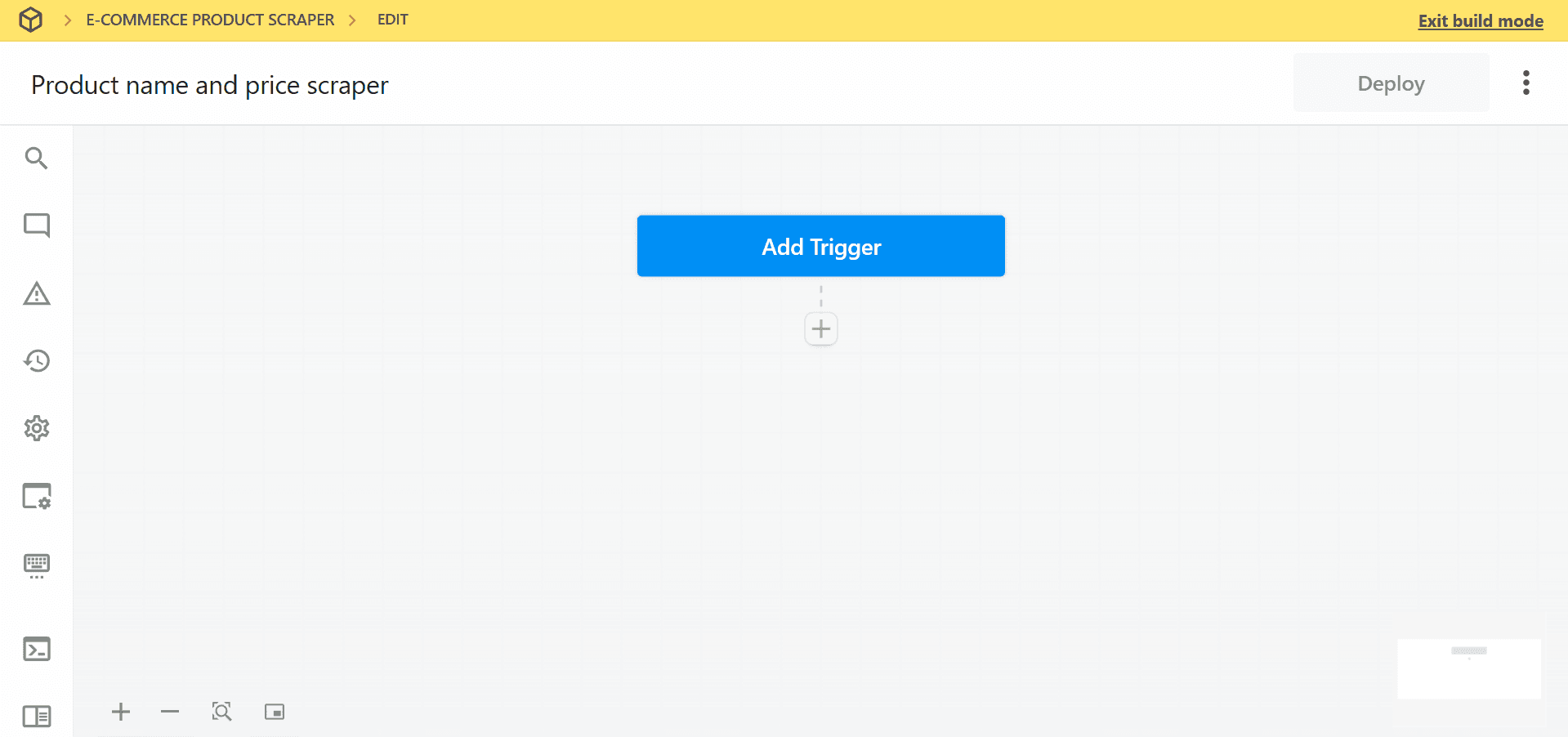
1. Click `Add Trigger` in your new workflow.
5. Click the `Create Workflow` button.
### 2. Set up a Schedule trigger
1. Click `Add Trigger` in your new workflow.
 2. Search for and select `Schedule`.
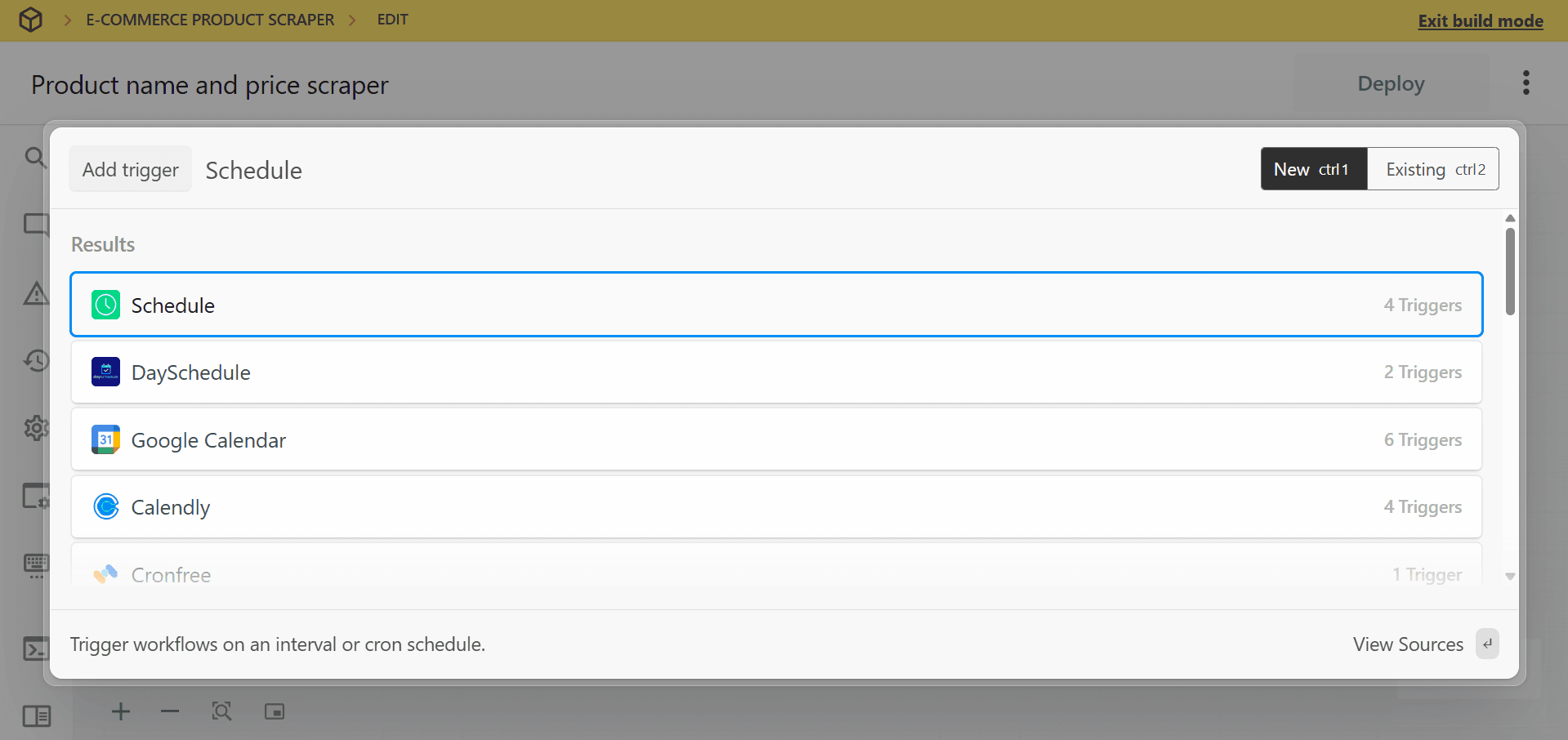 3. Choose `Custom Interval` from the trigger options.
4. Set your desired frequency (e.g., "Daily at 1:00 AM UTC").
5. Click `Save and continue`.
### 3. Configure ZenRows integration with Pipedream
To extract specific elements from a dynamic page using ZenRows with Pipedream, follow these steps:
#### Generate the cURL request from ZenRows
1. Open [ZenRows' Universal Scraper API Request Playground](https://app.zenrows.com/builder).
2. Enter `https://www.scrapingcourse.com/pagination` as the URL to scrape.
3. Activate **JS Rendering** to handle dynamic content.
4. Set **Output type** to **Specific Data** and configure the CSS selectors under the **Parsers** tab:
```json theme={null}
{ "name": ".product-name", "price": ".product-price" }
```
The CSS selectors provided in this example (`.product-name`, `.product-price`) are specific to the page used in this guide. Selectors may vary across websites. For guidance on customizing selectors, refer to the [CSS Extractor documentation](/universal-scraper-api/features/css-extractor). If you're having trouble, the [Advanced CSS Selectors Troubleshooting Guide](/universal-scraper-api/troubleshooting/advanced-css-selectors) can help resolve common issues.
5. Click on the `cURL` tab on the right and copy the generated code.
Example code:
```bash theme={null}
curl "https://api.zenrows.com/v1/?apikey=YOUR_ZENROWS_API_KEY&url=https%3A%2F%2Fwww.scrapingcourse.com%2Fpagination&js_render=true&premium_proxy=true&proxy_country=us&css_extractor=%257B%2522name%2522%253A%2522.product-name%2522%252C%2522price%2522%253A%2522.product-price%2522%257D"
```
#### Import the cURL into Pipedream
1. In Pipedream, add an `HTTP request` step:
* Click the `+` button below your trigger to add a new step.
* Search for and select `HTTP / Webhook`.
* Choose `Build an HTTP request` from the actions.
3. Choose `Custom Interval` from the trigger options.
4. Set your desired frequency (e.g., "Daily at 1:00 AM UTC").
5. Click `Save and continue`.
### 3. Configure ZenRows integration with Pipedream
To extract specific elements from a dynamic page using ZenRows with Pipedream, follow these steps:
#### Generate the cURL request from ZenRows
1. Open [ZenRows' Universal Scraper API Request Playground](https://app.zenrows.com/builder).
2. Enter `https://www.scrapingcourse.com/pagination` as the URL to scrape.
3. Activate **JS Rendering** to handle dynamic content.
4. Set **Output type** to **Specific Data** and configure the CSS selectors under the **Parsers** tab:
```json theme={null}
{ "name": ".product-name", "price": ".product-price" }
```
The CSS selectors provided in this example (`.product-name`, `.product-price`) are specific to the page used in this guide. Selectors may vary across websites. For guidance on customizing selectors, refer to the [CSS Extractor documentation](/universal-scraper-api/features/css-extractor). If you're having trouble, the [Advanced CSS Selectors Troubleshooting Guide](/universal-scraper-api/troubleshooting/advanced-css-selectors) can help resolve common issues.
5. Click on the `cURL` tab on the right and copy the generated code.
Example code:
```bash theme={null}
curl "https://api.zenrows.com/v1/?apikey=YOUR_ZENROWS_API_KEY&url=https%3A%2F%2Fwww.scrapingcourse.com%2Fpagination&js_render=true&premium_proxy=true&proxy_country=us&css_extractor=%257B%2522name%2522%253A%2522.product-name%2522%252C%2522price%2522%253A%2522.product-price%2522%257D"
```
#### Import the cURL into Pipedream
1. In Pipedream, add an `HTTP request` step:
* Click the `+` button below your trigger to add a new step.
* Search for and select `HTTP / Webhook`.
* Choose `Build an HTTP request` from the actions.
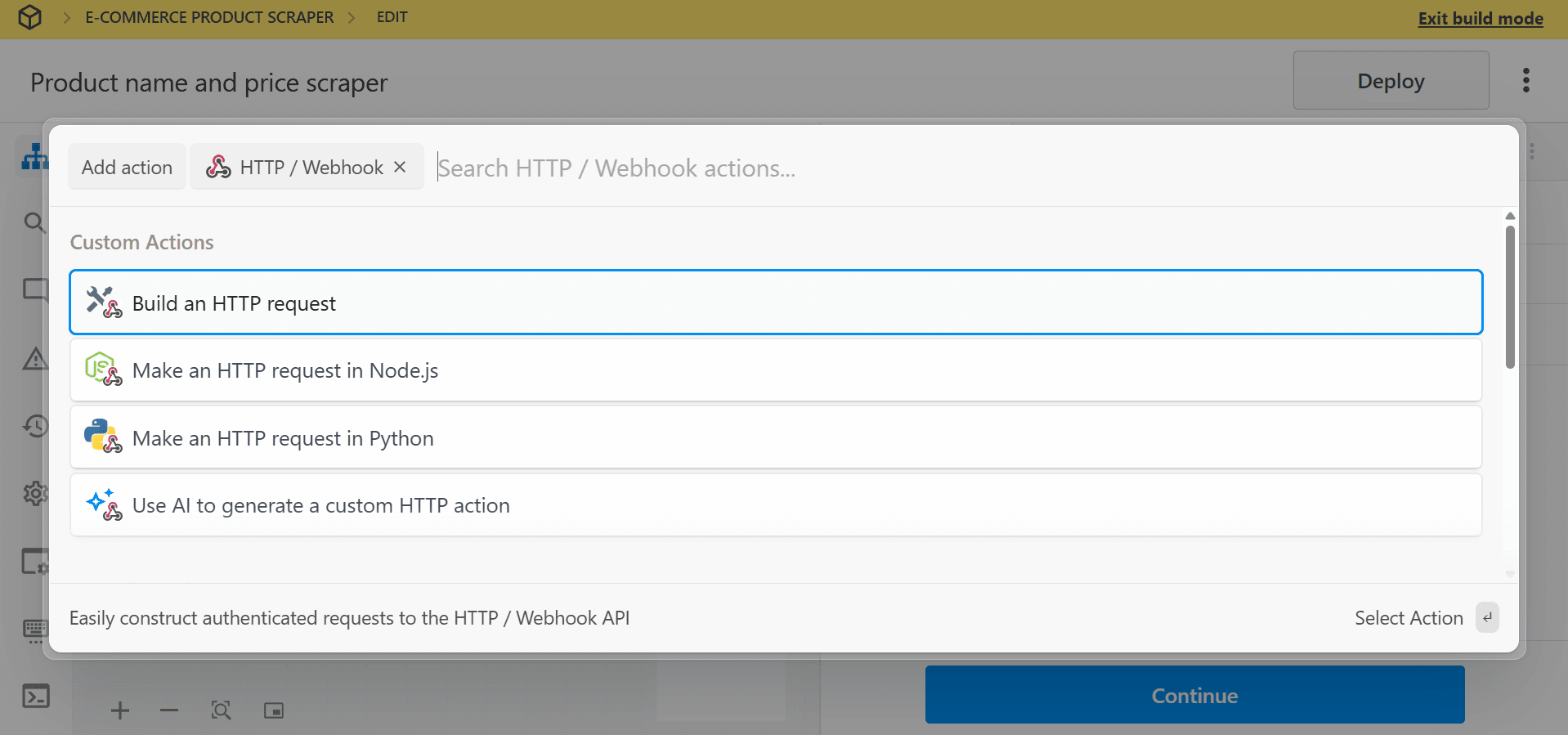 2. Click `Import cURL` and configure the HTTP request using the copied cURL code.
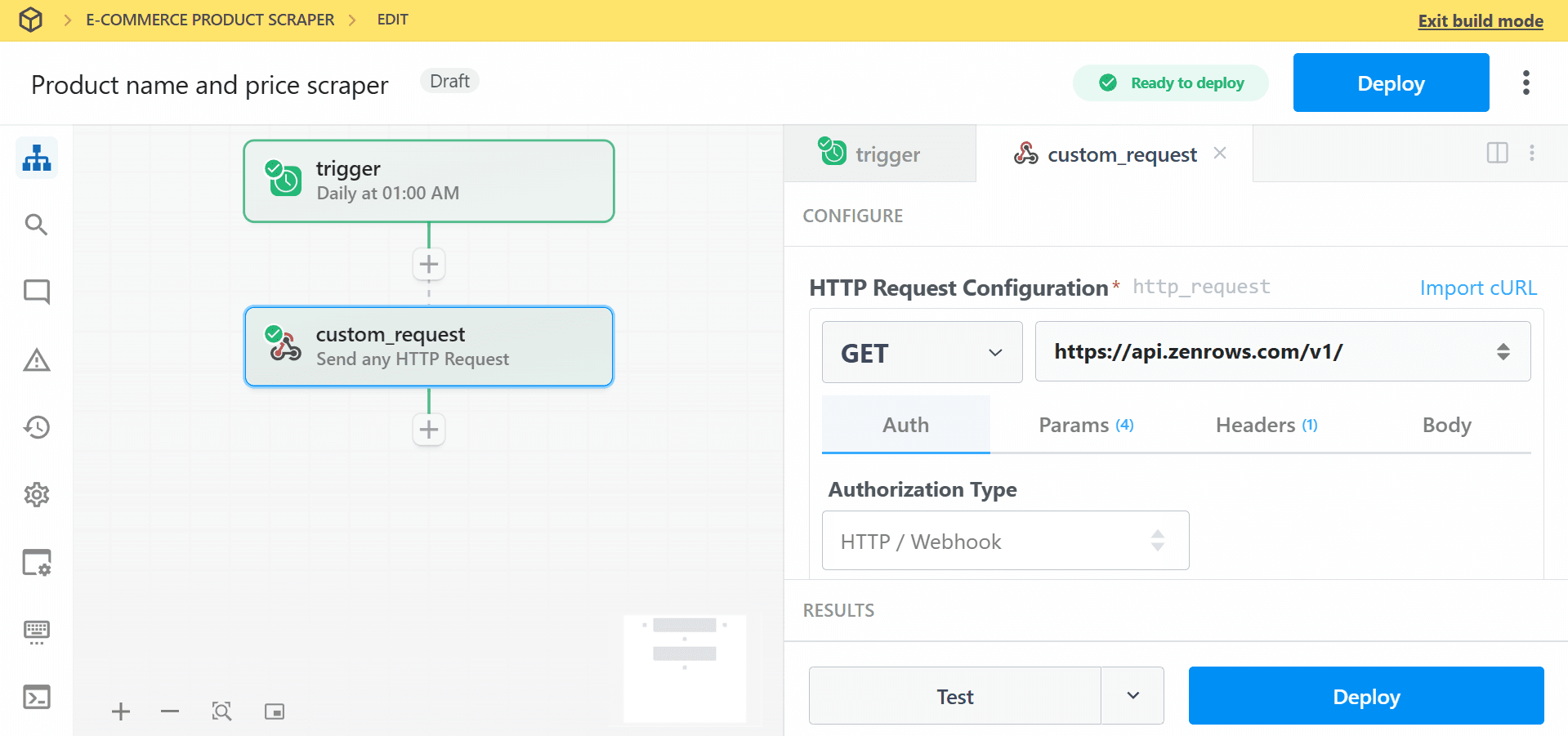 3. Test the step to confirm your setup works correctly. You should receive the extracted product names and prices.
### 4. Process and transform the scraped data
1. Click the `+` button to add another step.
2. Select `Node` action and choose `Run Node code`.
3. Add the following data transformation code to format the data as an array of arrays, which will be used in the next step:
```javascript JavaScript theme={null}
export default defineComponent({
async run({ steps, $ }) {
// get the scraped data from the previous HTTP request step
const data = steps.custom_request.$return_value;
// ensure we're working with an array of products
// if data is already an array, use it; otherwise, wrap single item in array
const products = Array.isArray(data) ? data : [data];
// transform each product into a row format for Google Sheets
const rowValues = products.map(product => [product.name, product.price]);
// return the formatted data that Google Sheets "Add Multiple Rows" expects
return {
rowValues
}
},
})
```
4. Test the step to confirm the code works.
3. Test the step to confirm your setup works correctly. You should receive the extracted product names and prices.
### 4. Process and transform the scraped data
1. Click the `+` button to add another step.
2. Select `Node` action and choose `Run Node code`.
3. Add the following data transformation code to format the data as an array of arrays, which will be used in the next step:
```javascript JavaScript theme={null}
export default defineComponent({
async run({ steps, $ }) {
// get the scraped data from the previous HTTP request step
const data = steps.custom_request.$return_value;
// ensure we're working with an array of products
// if data is already an array, use it; otherwise, wrap single item in array
const products = Array.isArray(data) ? data : [data];
// transform each product into a row format for Google Sheets
const rowValues = products.map(product => [product.name, product.price]);
// return the formatted data that Google Sheets "Add Multiple Rows" expects
return {
rowValues
}
},
})
```
4. Test the step to confirm the code works.
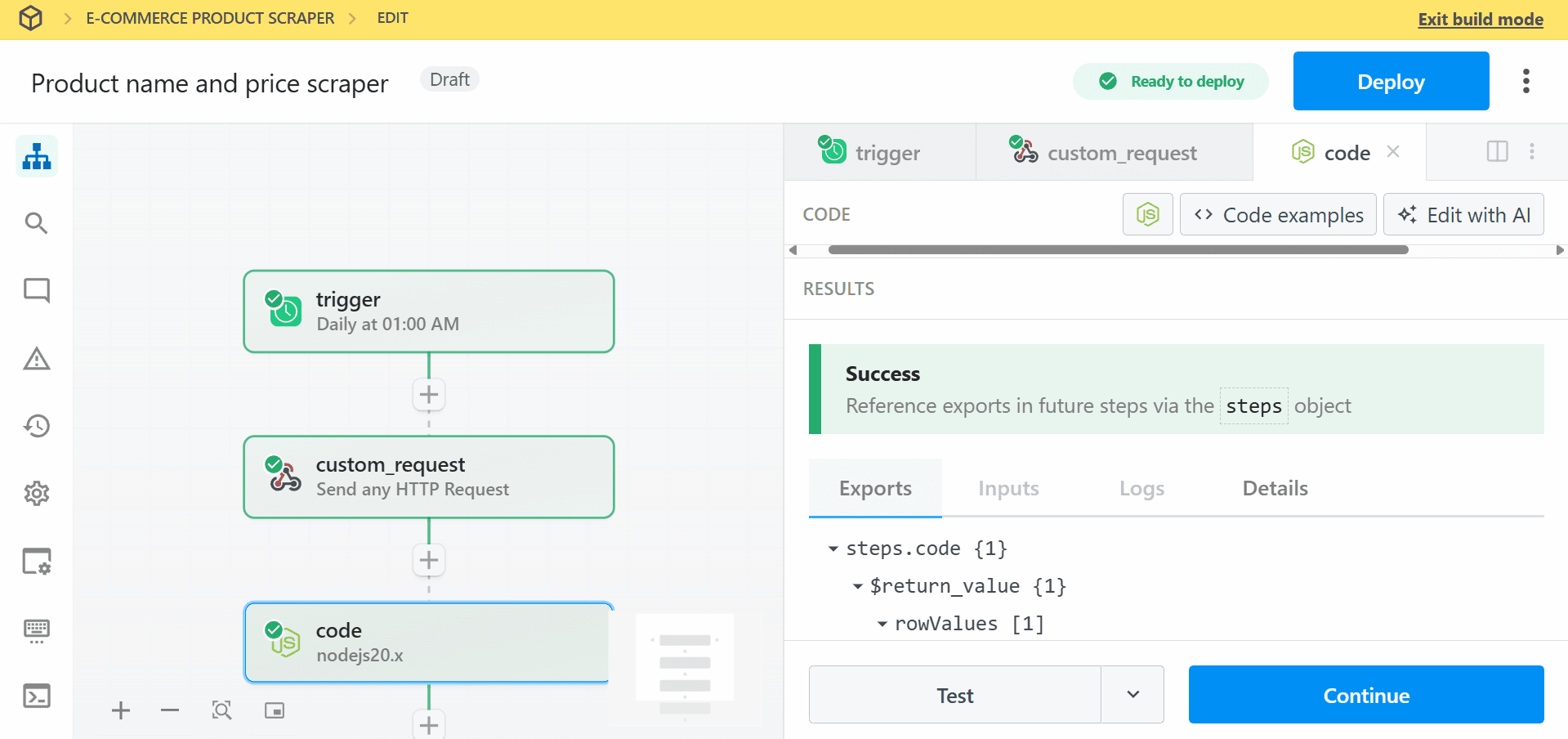 Use the **Edit with AI** feature of Pipedream to write the transformation code.
### 5. Save results to Google Sheets
1. Click the `+` button to add a final step.
2. Search for and select `Google Sheets`.
3. Choose `Add Multiple Rows` from the Pre-built Actions.
Use the **Edit with AI** feature of Pipedream to write the transformation code.
### 5. Save results to Google Sheets
1. Click the `+` button to add a final step.
2. Search for and select `Google Sheets`.
3. Choose `Add Multiple Rows` from the Pre-built Actions.
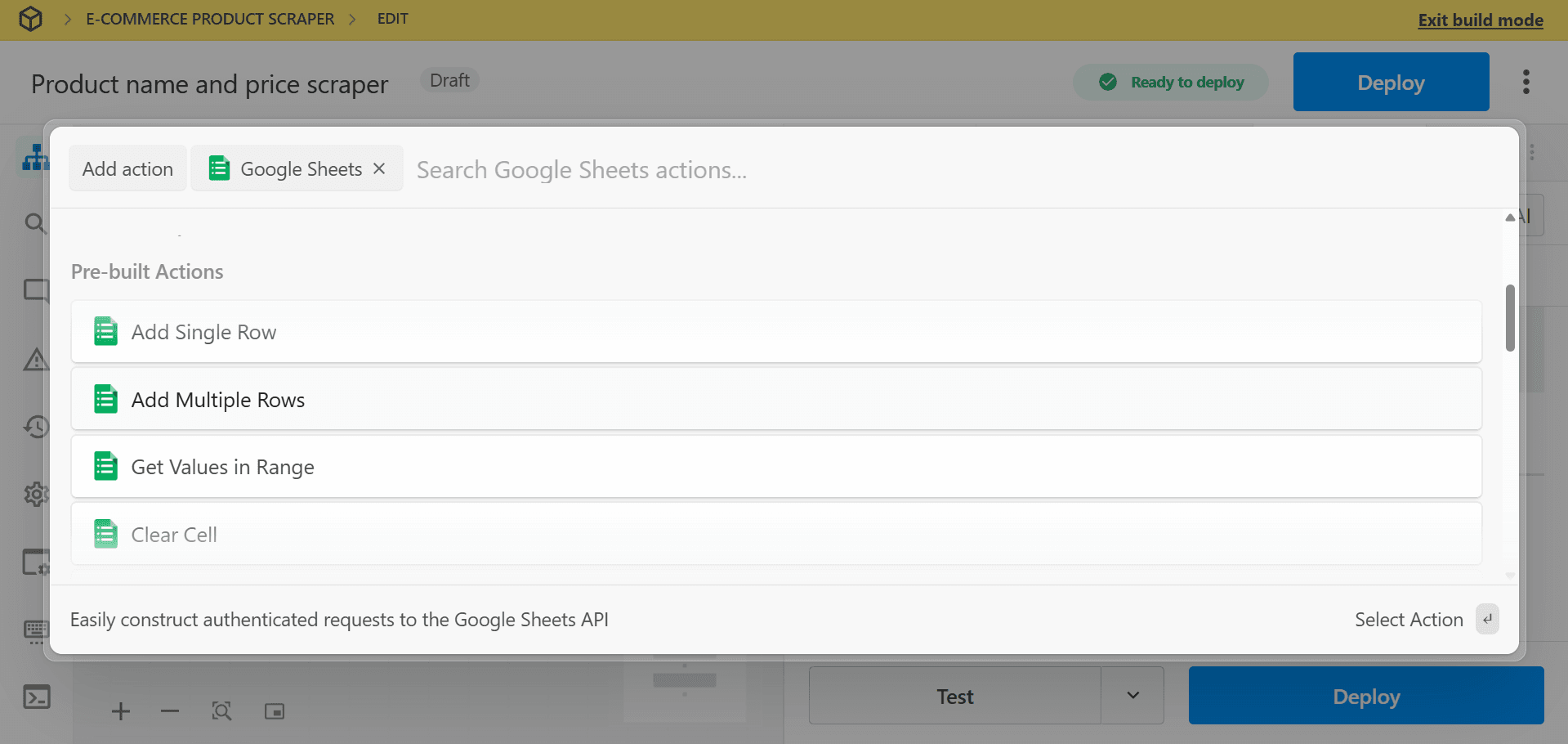 4. Click `Connect new account` to link your Google account with Pipedream.
5. Select your target Spreadsheet from the dropdown (or provide the Spreadsheet ID).
6. Choose the Worksheet where you want to store the data.
7. Configure Row Values. This field expects an array of arrays. Map the data from your processing step: `{{steps.code.$return_value.rowValues[0]}}`
8. Click `Test step` to verify that the data is correctly added to your Google Sheets.
9. Click `Deploy` in the top right corner of your workflow.
The workflow will now automatically scrape product names and prices from the e-commerce pagination page at your specified intervals and save the results to your Google Sheets.
Congratulations! You've successfully integrated ZenRows with Pipedream and automated your web scraping workflow.
## Troubleshooting
### Authentication Issues
* **Check your ZenRows API key**
4. Click `Connect new account` to link your Google account with Pipedream.
5. Select your target Spreadsheet from the dropdown (or provide the Spreadsheet ID).
6. Choose the Worksheet where you want to store the data.
7. Configure Row Values. This field expects an array of arrays. Map the data from your processing step: `{{steps.code.$return_value.rowValues[0]}}`
8. Click `Test step` to verify that the data is correctly added to your Google Sheets.
9. Click `Deploy` in the top right corner of your workflow.
The workflow will now automatically scrape product names and prices from the e-commerce pagination page at your specified intervals and save the results to your Google Sheets.
Congratulations! You've successfully integrated ZenRows with Pipedream and automated your web scraping workflow.
## Troubleshooting
### Authentication Issues
* **Check your ZenRows API key**
Go to your ZenRows dashboard and copy your API key. Make sure it is pasted exactly as it appears into your workflow or tool. Even a small typo can prevent it from working.
* **Verify your subscription status**
Make sure your ZenRows subscription is active and that your account has enough usage. If your usage runs out, the scraping requests will stop working.
You can increase your usage by purchasing Top-Ups or upgrading. For details, see our [Pricing Documentation](/first-steps/pricing).
### No Data Retrieved
* **Check if the page loads content right away**
Visit the page in your browser. If you don't see the data immediately, it might load a few seconds later. This means the content is dynamic.
* **Enable JavaScript rendering**
If the website loads content using JavaScript, you need to enable JS Rendering in ZenRows. This allows ZenRows to wait and capture the full content, just like a real browser.
* **Check your CSS selectors**
Right-click on the item you want to scrape (like a product name or price) and select "Inspect" to find the correct CSS selector. Make sure the selectors you are using match the content on the website.
* **Allow more time for the page to load**
If the content takes a few seconds to appear, try increasing the wait time in ZenRows using the wait or `wait_for` options. This gives the page more time to fully load before ZenRows tries to scrape it.
### Workflow Execution Failures
* **Look at the error logs in your tool**
If you are using a tool like Pipedream, check the logs to see if there is a specific error message. This can help you understand what went wrong.
* **Review each step in your workflow**
Make sure each step has the correct data and settings. If a step depends on information from a previous one, double-check that everything is connected properly.
* **Confirm the format of the API response**
Some tools expect data in a specific format. Make sure your setup is handling the response correctly, especially if you are extracting specific fields like text or prices.
## Conclusion
You've successfully learned how to integrate ZenRows with Pipedream! This powerful combination enables you to build sophisticated web scraping automations that can collect, process, and distribute data across your entire tech stack efficiently.
## Frequently Asked Questions (FAQs)
Some websites load their content a few seconds after the page opens. To make sure ZenRows captures everything, turn on JavaScript rendering in your API request. This lets ZenRows wait and load the page like a real browser before scraping.
CSS selectors are used to tell ZenRows what data to extract from the page. For example, if you want to collect product names, you might use `.product-name`. To find the right selector, open the page in your browser, right-click the item you want, and select "Inspect" to view its code.
Yes. You can connect ZenRows to other platforms using tools like Pipedream or Zapier. This allows you to send scraped data to CRMs, databases, Slack, or any tool that accepts API connections.
In Pipedream, use the “Schedule” trigger to run your scraping workflow automatically. You can choose how often it runs, such as daily at a specific time (for example, every day at 1:00 AM UTC).
Limits depend on your ZenRows plan, such as how much usage limit you have. Pipedream also has limits on how many times workflows can run. You can check both platforms to see your current usage and available limits.