> ## Documentation Index
> Fetch the complete documentation index at: https://docs.zenrows.com/llms.txt
> Use this file to discover all available pages before exploring further.
# CSS Extractor
> Use CSS selectors and XPath expressions to extract specific data points from HTML pages and return structured JSON with ZenRows CSS Extractor.
The CSS Extractor parameter transforms ZenRows' standard HTML output into structured JSON data containing only the specific elements you need. Instead of receiving the full HTML content and parsing it yourself, you get clean, organized data extracted using CSS selectors and XPath expressions.
This feature is particularly useful when you need to:
* Extract specific data points like product prices, titles, or links
* Transform unstructured HTML into structured JSON for easy processing
* Reduce response size by getting only relevant information
* Automate data collection from consistent page structures
* Build data pipelines that require predictable JSON output
The CSS Extractor works with both standard scraping and JavaScript rendering. For dynamic content that loads via AJAX, combine it with `js_render=true` for complete data extraction.
## How CSS Extractor works
CSS Extractor processes the rendered HTML content using CSS selectors or XPath expressions to identify and extract specific elements. The browser parses the page content, locates elements matching your selectors, and returns the extracted data in a structured JSON format.
This process captures:
* Text content from matching elements
* Attribute values (href, src, data attributes, etc.)
* Multiple elements as arrays when selectors match several items
* Complex data structures using nested extraction rules
The extraction happens after the page is fully loaded, ensuring you capture all content including dynamically generated elements when used with JavaScript rendering.
## Basic usage
Enable CSS Extractor by adding the `css_extractor` parameter with a JSON object defining your extraction rules:
```python Python theme={null}
# pip install requests
import requests
url = 'https://www.scrapingcourse.com/ecommerce/'
apikey = 'YOUR_ZENROWS_API_KEY'
params = {
'url': url,
'apikey': apikey,
'css_extractor': """{"links":"a @href","images":"img @src"}""",
}
response = requests.get('https://api.zenrows.com/v1/', params=params)
print(response.text)
```
```javascript Node.js theme={null}
// npm install axios
const axios = require('axios');
const url = 'https://www.scrapingcourse.com/ecommerce/';
const apikey = 'YOUR_ZENROWS_API_KEY';
axios({
url: 'https://api.zenrows.com/v1/',
method: 'GET',
params: {
'url': url,
'apikey': apikey,
'css_extractor': `{"links":"a @href","images":"img @src"}`,
},
})
.then(response => {
console.log(response.data.tables[0]); // Access the first table directly
})
.catch(error => console.log(error));
```
```java Java theme={null}
import org.apache.hc.client5.http.fluent.Request;
public class APIRequest {
public static void main(final String... args) throws Exception {
String apiUrl = "https://api.zenrows.com/v1/?apikey=YOUR_ZENROWS_API_KEY&url=https%3A%2F%2Fwww.scrapingcourse.com%2Fecommerce%2F&css_extractor=%7B%22links%22%3A%22a%20%40href%22%2C%20%22images%22%3A%22img%20%40src%22%7D";
String response = Request.get(apiUrl)
.execute().returnContent().asString();
System.out.println(response);
}
}
```
```php PHP theme={null}
```
```go Go theme={null}
package main
import (
"io"
"log"
"net/http"
)
func main() {
client := &http.Client{}
req, err := http.NewRequest("GET", "https://api.zenrows.com/v1/?apikey=YOUR_ZENROWS_API_KEY&url=https%3A%2F%2Fwww.scrapingcourse.com%2Fecommerce%2F&css_extractor=%7B%22links%22%3A%22a%20%40href%22%2C%20%22images%22%3A%22img%20%40src%22%7D", nil)
if err != nil {
log.Fatalln(err)
}
resp, err := client.Do(req)
if err != nil {
log.Fatalln(err)
}
defer resp.Body.Close()
body, err := io.ReadAll(resp.Body)
if err != nil {
log.Fatalln(err)
}
log.Println(string(body))
}
```
```ruby Ruby theme={null}
# gem install faraday
require 'faraday'
url = URI.parse('https://api.zenrows.com/v1/?apikey=YOUR_ZENROWS_API_KEY&url=https%3A%2F%2Fwww.scrapingcourse.com%2Fecommerce%2F&css_extractor=%7B%22links%22%3A%22a%20%40href%22%2C%20%22images%22%3A%22img%20%40src%22%7D')
conn = Faraday.new()
conn.options.timeout = 180
res = conn.get(url, nil, nil)
print(res.body)
```
```bash cURL theme={null}
curl "https://api.zenrows.com/v1/?apikey=YOUR_ZENROWS_API_KEY&url=https%3A%2F%2Fwww.scrapingcourse.com%2Fecommerce%2F&css_extractor=%7B%22links%22%3A%22a%20%40href%22%2C%20%22images%22%3A%22img%20%40src%22%7D"
```
This example extracts the page title, price elements, and all link URLs, returning them as a structured JSON object instead of raw HTML.
## Extraction patterns
The CSS Extractor supports various extraction patterns to handle different types of content and data structures.
### Basic text extraction
Extract text content from elements using standard CSS selectors:
| Extraction Rule | Sample HTML | Description | JSON Output |
| ---------------------------- | ------------------------------------------- | -------------------------------------------- | -------------------------------------- |
| \{"title":"h1"} | \
Welcome to Our Store\
| Extract text from h1 element | \{"title": "Welcome to Our Store"} |
| \{"description":"p.intro"} | \
Best products here\
| Extract text from paragraph with intro class | \{"description": "Best products here"} |
| \{"content":"#main-content"} | \
Page content\
| Extract text from element with specific ID | \{"content": "Page content"} |
### Attribute extraction
Extract specific attributes from elements by adding `@attribute_name` to your selector:
| Extraction Rule | Sample HTML | Description | JSON Output |
| ---------------------------------------------- | ---------------------------------------- | ------------------------------------------- | -------------------------- |
| \{"links":"a @href"} | \Products\ | Extract *href* attribute from links | \{"links": "/products"} |
| \{"images":"img @src"} | \ | Extract *src* attribute from images | \{"images": "photo.jpg"} |
| \{"form\_token":"input\[name=\_token] @value"} | \ | Extract *value* attribute from hidden input | \{"form\_token": "abc123"} |
### Multiple elements
When your selector matches multiple elements, CSS Extractor automatically returns an array:
| Extraction Rule | Sample HTML | Description | JSON Output |
| -------------------------------- | ------------------------------------------------------------------------------------ | ------------------------------------------- | ------------------------------------------ |
| \{"products":"h2.product-title"} | \
Product 1\
\
Product 2\
| Extract text from multiple elements | \{"products": \["Product 1", "Product 2"]} |
| \{"prices":".price"} | \\$19.99\\\$29.99\ | Extract text from multiple price elements | \{"prices": \["\$19.99", "\$29.99"]} |
| \{"all\_links":"a @href"} | \Link 1\\Link 2\ | Extract href attributes from multiple links | \{"all\_links": \["/page1", "/page2"]} |
### Advanced selectors
Use complex CSS selectors for precise targeting:
| Extraction Rule | Sample HTML | Description | JSON Output |
| ------------------------------------------------ | --------------------------------------------------------------------------------- | -------------------------------------------- | ----------------------------------------------------------------------- |
| \{"emails":"a\[href^='mailto:'] @href"} | \Email us\ | Extract *href* attribute for mailto links | \{"emails": "mailto:[contact@example.com](mailto:contact@example.com)"} |
| \{"hidden\_values":"input\[type=hidden] @value"} | \ | Extract *value* attribute from hidden inputs | \{"hidden\_values": "secret123"} |
| \{"data\_attrs":"button @data-product-id"} | \ | Extract custom data attribute | \{"data\_attrs": "12345"} |
### XPath expressions
For more complex extractions, use XPath expressions. XPath is a query language for selecting nodes in XML/HTML documents, offering more flexibility than CSS selectors:
| Extraction Rule | Sample HTML | Description | JSON Output |
| ----------------------------------------------------- | ------------------------------------------------------- | ------------------------------------ | --------------------------------- |
| \{"heading":"//h1"} | \
Page Title\
| Extract text using XPath | \{"heading": "Page Title"} |
| \{"image\_src":"//img @src"} | \ | Extract *src* attribute using XPath | \{"image\_src": "banner.png"} |
| \{"text\_content":"//div\[@class='content']//text()"} | \
Hello \World\\
| Extract all text content using XPath | \{"text\_content": "Hello World"} |
### Complex extraction example
Here's a comprehensive example showing how to extract structured product data from an e-commerce page:
```json JSON theme={null}
{
"products": "article.product",
"product_titles": "article.product h3.title",
"product_prices": "article.product .price @data-price",
"product_images": "article.product img @src",
"product_links": "article.product a.product-link @href",
"availability": "article.product .stock-status",
"ratings": "article.product .rating @data-rating",
"categories": "nav.breadcrumb a",
"page_title": "//title",
"meta_description": "//meta[@name='description'] @content"
}
```
This extraction rule would return a structured JSON object with all the specified product information, making it easy to process and analyze the data.
## When to use CSS Extractor
CSS Extractor is essential for these scenarios:
**E-commerce data collection**
* Product information - Extract prices, titles, descriptions, and availability
* Inventory monitoring - Track stock levels and price changes
* Competitor analysis - Collect product data from multiple sources
* Review aggregation - Extract customer reviews and ratings
* Category browsing - Collect product listings from category pages
**Content aggregation**
* News articles - Extract headlines, authors, publication dates, and content
* Blog posts - Collect titles, excerpts, and metadata
* Job listings - Collect job titles, companies, locations, and requirements
* Real estate - Extract property details, prices, and contact information
**Data monitoring and analysis**
* Price tracking - Monitor price changes across multiple retailers
* Content changes - Track updates to specific page elements
* SEO analysis - Extract meta tags, headings, and structured data
* Form data - Collect form fields and validation tokens
* API endpoint discovery - Extract AJAX endpoints and data sources
**Development and testing**
* Quality assurance - Verify that specific elements appear correctly
* A/B testing - Extract different page variants for comparison
* Performance monitoring - Track loading of specific page components
* Integration testing - Verify data consistency across different pages
For pages with dynamic content that loads via JavaScript, combine CSS Extractor with `js_render=true` to ensure all content is captured before extraction.
## Best practices
### Combine with appropriate ZenRows parameters
Maximize your extraction success by strategically combining CSS Extractor with other ZenRows features. While CSS Extractor works independently with static content, pairing it with complementary parameters ensures reliable data extraction across different website types and protection levels.
#### For dynamic content that loads via JavaScript
When targeting websites that render content dynamically, enable JavaScript rendering and use timing controls to ensure all elements are present before extraction:
```python Python theme={null}
# Dynamic content extraction
params = {
'url': url,
'apikey': 'YOUR_ZENROWS_API_KEY',
'js_render': 'true', # Enable JavaScript rendering
'wait_for': '.product-item', # Wait for specific elements to appear
'css_extractor': '{"products":".product-item","prices":".price"}',
}
```
You can find more information about the `wait_for` parameter [here](/universal-scraper-api/features/wait-for).
#### For protected or geo-restricted websites
Combine with proxy features to access content that may be blocked or restricted by location:
```python Python theme={null}
params = {
'url': url,
'apikey': 'YOUR_ZENROWS_API_KEY',
'premium_proxy': 'true',
'proxy_country': 'US', # Specify country
'css_extractor': '{"content":"main","links":"a @href"}',
}
```
You can find more information about the proxy features on the [Premium Proxy Documentation](/universal-scraper-api/features/premium-proxy).
#### For complex interactive websites
Use JavaScript Instructions to simulate user interactions before extracting data:
```python Python theme={null}
# Interactive content extraction
params = {
'url': url,
'apikey': 'YOUR_ZENROWS_API_KEY',
'js_render': 'true',
'js_instructions': '[{"click": ".load-more"}, {"wait": 2000}]', # Simulate user actions
'css_extractor': '{"products":".product-item","total_count":".results-count"}',
}
```
You can find more information about the JavaScript Instructions Parameter [here](/universal-scraper-api/features/js-instructions).
### Choose stable and reliable selectors
The foundation of successful CSS extraction is using selectors that remain consistent over time. Prioritize semantic and stable attributes over auto-generated or fragile ones:
```python Python theme={null}
# Excellent - semantic and stable selectors
params = {
'css_extractor': '{"title":"h1","price":"[data-price]","description":".product-description"}',
}
# Good - stable class names and IDs
params = {
'css_extractor': '{"content":"#main-content","items":".product-item"}',
}
# Avoid - auto-generated or fragile selectors
params = {
'css_extractor': '{"title":"._titleComponent_1a2b3c","price":"div:nth-child(3) > span"}',
}
```
**Selector stability hierarchy (most to least stable):**
1. `data-*` attributes (e.g., `[data-testid="product"]`)
2. Semantic IDs (e.g., `#product-title`)
3. Semantic class names (e.g., `.product-description`)
4. Element types with attributes (e.g., `img[alt="product"]`)
5. Complex descendant selectors (use sparingly)
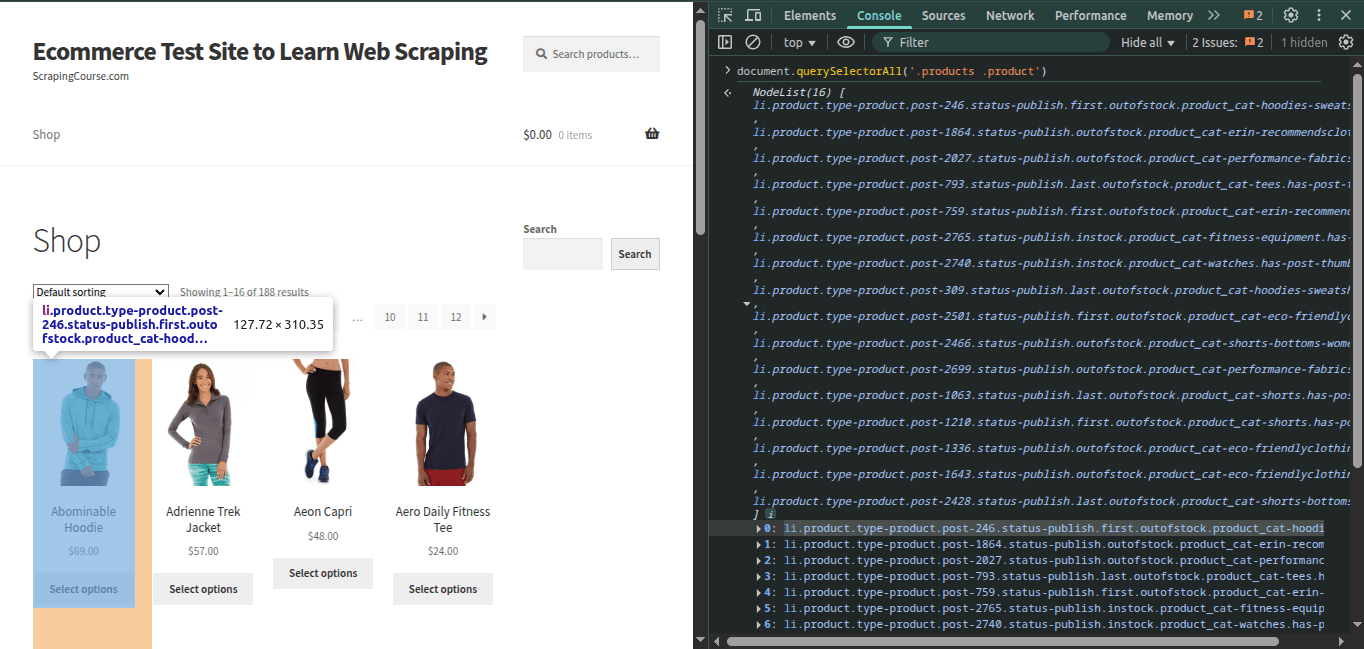
### Test selectors before implementation
Always verify your CSS selectors work correctly on the target website before deploying them in production. This prevents extraction failures and ensures reliable data collection.
Navigate to the page you want to scrape in your browser
1. Right-click on the page and select "Inspect" or press F12
2. Navigate to the "Console" tab
3. Test your selector using JavaScript:
```javascript theme={null}
// Test if your selector finds elements
document.querySelectorAll('.your-selector');
// Check specific attributes
document.querySelectorAll('a').forEach(link => console.log(link.href));
// Verify text content
document.querySelectorAll('.product-title').forEach(title => console.log(title.textContent));
```
* Ensure the selector returns the expected number of elements
* Verify the content matches what you want to extract
* Test attribute extraction (href, src, data attributes)
## Troubleshooting
### Common issues and solutions
| Issue | Cause | Solution |
| ------------------------------ | ------------------------------------- | ---------------------------------------------------------- |
| Empty or null values | Selector doesn't match any elements | Verify selector syntax and element existence |
| Missing dynamic content | Content loads after page render | Add `js_render=true` and increase `wait` time |
| Incorrect attribute extraction | Wrong attribute name or syntax | Check attribute exists and use correct `@attribute` syntax |
| Partial data extraction | Elements load asynchronously | Use `wait_for` parameter to wait for specific elements |
| Selector too specific | Overly complex selector breaks easily | Use more general, stable selectors |
| Large response size | Extracting too much data | Focus on essential data points only |
### Handling selector failures
If ZenRows cannot find matching elements for your CSS selectors, it will retry internally several times. If selectors still don't match after the timeout period, you may receive incomplete data or empty results. This typically means your selectors don't exist in the final HTML or are too fragile to be reliable.
#### Selector not present in final HTML
1. Open the target page in your browser
2. Right-click the target content and choose "Inspect"
3. Check if your selector exists after the page fully loads
1. Run `document.querySelectorAll('your_selector')` in the browser console
2. If it returns no elements, your selector is incorrect
1. Use simple selectors like `.class` or `#id`
2. Prefer stable attributes like `[data-testid="item"]`
3. Avoid overly specific or deep descendant selectors
#### Dynamic or fragile selectors
Some websites use auto-generated class names that change frequently. These are considered dynamic and unreliable for consistent data extraction.
* Re-check the page in DevTools if a previously working selector fails
* Look for stable attributes like `data-*` attributes
* Use attribute-based selectors, which are more stable over time
**Instead of fragile selectors:**
```python Python theme={null}
# Avoid - auto-generated or fragile selectors
params = {
'css_extractor': '{"products":".xY7zD1"}', # Google-style auto-generated
}
params = {
'css_extractor': '{"items":".product_list__V9tjod"}', # Mix of readable and random
}
```
**Use stable alternatives:**
```python Python theme={null}
# Better - stable, semantic selectors
params = {
'css_extractor': '{"products":"[data-testid=\\"product-list\\"]"}',
}
params = {
'css_extractor': '{"images":"img[src$=\\".jpg\\"]"}',
}
params = {
'css_extractor': '{"items":"[data-products=\\"item\\"]"}',
}
```
Track your CSS selectors over time. When the target website changes its structure, you'll likely need to update your selectors to maintain reliable data extraction.
#### Content is conditional or missing
When scraping at scale, it's common to encounter pages where expected content is missing or appears under certain conditions.
**Common scenarios where selectors might fail:**
* **Inexistent elements** - The product exists, but elements like price or "Add to cart" button are missing
* **Deleted or unavailable pages** - Product URLs may be valid, but the product has been removed
* **Failed page loads** - The page might fail to load properly, causing selectors to miss content
* **Conditional rendering** - Content only renders based on user location, browser behavior, or interactions
**How to handle missing content:**
Use these ZenRows parameters to identify and handle these cases:
1. Monitor original status codes
```python Python theme={null}
params = {
'css_extractor': '{"title":"h1","price":".price"}',
'original_status': 'true', # Returns original HTTP status
}
response = requests.get('https://api.zenrows.com/v1/', params=params)
print(response)
```
For more details check the [original\_status documentation](/universal-scraper-api/features/other#original-http-code)
2. Allow error status codes
```python Python theme={null}
params = {
'css_extractor': '{"error_message":".error-text","content":"main"}',
'allowed_status_codes': '404,500,503', # Capture error pages
}
```
For more details check the [allowed\_status\_codes documentation](/universal-scraper-api/features/other#return-content-on-error)
3. Best practices for handling missing content
* Anticipate that some selectors may not match if content is missing
* Include fallback selectors for critical data points
* Check for error indicators in your extraction rules
* Monitor extraction success rates to detect site changes
#### Selector exists but extraction still fails
Sometimes your CSS selector is correct but still doesn't extract the expected data:
**Common causes and solutions:**
* **Element is hidden** (`display: none`) - CSS Extractor can still extract hidden content. If you need visible elements only, target child elements or wrappers that appear when content is shown.
You can find more information about advanced CSS selectors [here](/universal-scraper-api/troubleshooting/advanced-css-selectors).
* **Content appears after user interaction** - Use `js_instructions` to simulate clicks or scrolls before extraction:
```python Python theme={null}
params = {
'js_render': 'true',
'js_instructions': '[{"click": ".load-more-button"}]',
'css_extractor': '{"products": ".product-item"}',
}
```
* **Page relies on slow external scripts** - Try waiting for different selectors that appear earlier, or increase wait times
```python Python theme={null}
params = {
'js_render': 'true',
'wait_for': '.initial-content', # Wait for early-loading content
'css_extractor': '{"data": ".late-loading-content"}',
}
```
## Pricing
The `css_extractor` parameter is included at no additional cost with all ZenRows requests - you only pay extra for JavaScript Render and Premium Proxy when used.
You can monitor your ZenRows usage in multiple ways to stay informed about your account activity and prevent unexpected overages.
**Dashboard monitoring**: View real-time usage statistics, remaining requests, success rates, and request history on your [Analytics Page](https://app.zenrows.com/analytics/scraper-api). You can also set up usage alerts in your [notification settings](https://app.zenrows.com/account/notifications) to receive notifications when you approach your limits.
**Programmatic monitoring**: For automated monitoring in your applications, call the `/v1/subscriptions/self/details` endpoint with your API key in the `X-API-Key` header. This returns real-time usage data that you can integrate into your monitoring systems. [Learn more about the usage endpoint](https://docs.zenrows.com/universal-scraper-api/features/other#plan-usage).
**Response header monitoring**: Track your concurrency usage through response headers included with each request:
* `Concurrency-Limit`: Your maximum concurrent requests
* `Concurrency-Remaining`: Available concurrent request slots
* `X-Request-Cost`: Cost of the current request
## Frequently Asked Questions (FAQ)
Yes, CSS Extractor works with both standard scraping and JavaScript rendering. Use `js_render=true` only when you need to extract content that loads dynamically via JavaScript.
CSS selectors are simpler and more familiar to web developers, while XPath offers more powerful querying capabilities. CSS selectors are sufficient for most use cases, but XPath is useful for complex document traversal and text manipulation.
There's no strict limit on the number of extraction rules, but keep in mind that more complex extractions may increase processing time and response size. Focus on extracting only the data you actually need.
CSS Extractor returns flat JSON structures. For complex nested data, you may need to make multiple requests or use different selectors to extract related data points separately.
If a selector doesn't match any elements, that field will be null or omitted from the JSON response. This won't cause an error, but you should validate your results to ensure critical data was extracted.
Yes, CSS Extractor works seamlessly with all ZenRows features including Premium Proxy, JavaScript rendering, Screenshots, and Block Resources. This allows you to handle complex scraping scenarios while getting structured data output.
Use JavaScript Instructions to simulate user interactions (clicks, scrolls, form submissions) before extraction. The CSS Extractor will then process the updated page content after these interactions complete.
CSS Extractor automatically returns arrays for multiple matches. To get only the first match, you can either make your selector more specific or process the results in your code to take only the first item from arrays.
 | Extract *src* attribute from images | \{"images": "photo.jpg"} |
| \{"form\_token":"input\[name=\_token] @value"} | \ | Extract *value* attribute from hidden input | \{"form\_token": "abc123"} |
### Multiple elements
When your selector matches multiple elements, CSS Extractor automatically returns an array:
| Extraction Rule | Sample HTML | Description | JSON Output |
| -------------------------------- | ------------------------------------------------------------------------------------ | ------------------------------------------- | ------------------------------------------ |
| \{"products":"h2.product-title"} | \
| Extract *src* attribute from images | \{"images": "photo.jpg"} |
| \{"form\_token":"input\[name=\_token] @value"} | \ | Extract *value* attribute from hidden input | \{"form\_token": "abc123"} |
### Multiple elements
When your selector matches multiple elements, CSS Extractor automatically returns an array:
| Extraction Rule | Sample HTML | Description | JSON Output |
| -------------------------------- | ------------------------------------------------------------------------------------ | ------------------------------------------- | ------------------------------------------ |
| \{"products":"h2.product-title"} | \ | Extract *src* attribute using XPath | \{"image\_src": "banner.png"} |
| \{"text\_content":"//div\[@class='content']//text()"} | \
| Extract *src* attribute using XPath | \{"image\_src": "banner.png"} |
| \{"text\_content":"//div\[@class='content']//text()"} | \