> ## Documentation Index
> Fetch the complete documentation index at: https://docs.zenrows.com/llms.txt
> Use this file to discover all available pages before exploring further.
# CSS Selectors and HTML Parsing
> Extract web data with ZenRows using three methods: CSS selectors for JSON output, output filters for transformation, and raw HTML parsing.
ZenRows® provides multiple ways to extract and format data from web pages. You can use CSS Selectors for direct JSON extraction, apply output filters for data transformation, or retrieve raw HTML for custom processing.
This guide covers three main approaches to data extraction with ZenRows.
CSS Selectors are a query language for selecting HTML elements. When you enable the `css_extractor` parameter, ZenRows returns structured JSON data instead of raw HTML.
Let's say you want to scrape the title from the ScrapingCourse eCommerce page. The title is contained in an `h1` tag.
To extract it, send the `css_extractor` parameter with the value `{"title": "h1"}`. Make sure the parameter is properly encoded!
```python Python theme={null}
import requests
api_key = "YOUR_ZENROWS_API_KEY"
url = "https://www.scrapingcourse.com/ecommerce/"
css_extractor = {"title": "h1"}
response = requests.get(
"https://api.zenrows.com/v1/",
params={
"apikey": api_key,
"url": url,
"css_extractor": css_extractor
}
)
print(response.json())
```
```javascript JavaScript theme={null}
const axios = require("axios");
const apiKey = "YOUR_ZENROWS_API_KEY";
const url = "https://www.scrapingcourse.com/ecommerce/";
const cssExtractor = {"title": "h1"};
axios.get("https://api.zenrows.com/v1/", {
params: {
apikey: apiKey,
url: url,
css_extractor: cssExtractor
}
})
.then(response => console.log(response.data))
.catch(error => console.error(error));
```
```bash cURL theme={null}
curl "https://api.zenrows.com/v1/?apikey=YOUR_ZENROWS_API_KEY&url=https%3A%2F%2Fwww.scrapingcourse.com%2Fecommerce%2F&css_extractor=%257B%2522title%2522%253A%2520%2522h1%2522%257D"
```
This code sends a request to ZenRows with the CSS selector `h1` mapped to the key "title". ZenRows extracts the content from the first `h1` element and returns it as structured JSON data.
### Extracting Multiple Elements
Now let's extract multiple elements. Add the product names using the selector `.product-name`:
```python Python theme={null}
import requests
api_key = "YOUR_ZENROWS_API_KEY"
url = "https://www.scrapingcourse.com/ecommerce/"
css_extractor = {
"title": "h1",
"products": ".product-name"
}
response = requests.get(
"https://api.zenrows.com/v1/",
params={
"apikey": api_key,
"url": url,
"css_extractor": css_extractor
}
)
print(response.json())
```
```javascript JavaScript theme={null}
const axios = require("axios");
const apiKey = "YOUR_ZENROWS_API_KEY";
const url = "https://www.scrapingcourse.com/ecommerce/";
const cssExtractor = {
"title": "h1",
"products": ".product-name"
};
axios.get("https://api.zenrows.com/v1/", {
params: {
apikey: apiKey,
url: url,
css_extractor: cssExtractor
}
})
.then(response => console.log(response.data))
.catch(error => console.error(error));
```
```bash cURL theme={null}
curl "https://api.zenrows.com/v1/?apikey=YOUR_ZENROWS_API_KEY&url=https%3A%2F%2Fwww.scrapingcourse.com%2Fecommerce%2F&css_extractor=%257B%2522title%2522%253A%2522h1%2522%252C%2522product-list%2522%253A%2522.product-name%2522%257D"
```
This request extracts both the page title and all product names. When a CSS selector matches multiple elements, ZenRows automatically returns them as an array.
The response looks like this:
```json theme={null}
{
"title": "E-commerce Products",
"products": [
"Product 1",
"Product 2",
"Product 3"
// ...
]
}
```
### Extracting attributes
You might need product links to continue scraping individual product details. To extract the `href` attribute instead of text content, add `@href` to your selector.
Let's filter links to only include those starting with `/product/`:
```python Python theme={null}
import requests
api_key = "YOUR_ZENROWS_API_KEY"
url = "https://www.scrapingcourse.com/ecommerce/"
css_extractor = {
"title": "h1",
"products": ".product-name",
"links": "a[href*='/product/'] @href"
}
response = requests.get(
"https://api.zenrows.com/v1/",
params={
"apikey": api_key,
"url": url,
"css_extractor": css_extractor
}
)
print(response.json())
```
```javascript JavaScript theme={null}
const axios = require("axios");
const apiKey = "YOUR_ZENROWS_API_KEY";
const url = "https://www.scrapingcourse.com/ecommerce/";
const cssExtractor = {
"title": "h1",
"products": ".product-name",
"links": "a[href*='/product/'] @href"
};
axios.get("https://api.zenrows.com/v1/", {
params: {
apikey: apiKey,
url: url,
css_extractor: cssExtractor
}
})
.then(response => console.log(response.data))
.catch(error => console.error(error));
```
```bash cURL theme={null}
curl "https://api.zenrows.com/v1/?apikey=YOUR_ZENROWS_API_KEY&url=https%3A%2F%2Fwww.scrapingcourse.com%2Fecommerce%2F&css_extractor=%257B%2522title%2522%253A%2522h1%2522%252C%2522products%2522%253A%2522.product-name%2522%252C%2522links%2522%253A%2522a%255Bhref*%253D%27%252Fproduct%252F%27%255D%2540href%2522%257D"
```
The `@href` syntax tells ZenRows to extract the `href` attribute value instead of the element's text content. The `[href*='/product/']` part filters links to only include those containing `/product/` in their href attribute.
This returns:
```json theme={null}
{
"title": "Shop",
"products": [
"Product 1",
"Product 2",
"Product 3"
// ...
],
"links": [
"/product/1",
"/product/2",
"/product/3"
// ...
]
}
```
The `outputs` parameter extracts predefined data types from scraped HTML. This allows you to efficiently retrieve only the data types you need, reducing processing time and focusing on relevant information.
The parameter accepts a comma-separated list of filter names and returns results in structured JSON format.
Use `outputs=*` to retrieve all available data types.
### Extracting page structure
Get headings, links, and menu items to understand page structure:
```python Python theme={null}
import requests
api_key = "YOUR_ZENROWS_API_KEY"
url = "https://www.scrapingcourse.com/ecommerce/"
response = requests.get(
"https://api.zenrows.com/v1/",
params={
"apikey": api_key,
"url": url,
"outputs": "headings,links,menus"
}
)
print(response.json())
```
```javascript Node.js theme={null}
const axios = require("axios");
const apiKey = "YOUR_ZENROWS_API_KEY";
const url = "https://www.scrapingcourse.com/ecommerce/";
axios.get("https://api.zenrows.com/v1/", {
params: {
apikey: apiKey,
url: url,
outputs: "headings,links,menus"
}
})
.then(response => console.log(response.data))
.catch(error => console.error(error));
```
```bash cURL theme={null}
curl "https://api.zenrows.com/v1/?apikey=YOUR_ZENROWS_API_KEY&url=https%3A%2F%2Fwww.scrapingcourse.com%2Fecommerce%2F&outputs=headings,links,menus"
```
This extracts heading text from `h1` through `h6` elements, URLs from `a` tags, and menu items from `li` elements inside `menu` tags.
### Extracting media content
Get all images, videos, and audio files from a page:
```python Python theme={null}
import requests
api_key = "YOUR_ZENROWS_API_KEY"
url = "https://www.scrapingcourse.com/ecommerce/"
response = requests.get(
"https://api.zenrows.com/v1/",
params={
"apikey": api_key,
"url": url,
"outputs": "images,videos,audios"
}
)
print(response.json())
```
```javascript Node.js theme={null}
const axios = require("axios");
const apiKey = "YOUR_ZENROWS_API_KEY";
const url = "https://www.scrapingcourse.com/ecommerce/";
axios.get("https://api.zenrows.com/v1/", {
params: {
apikey: apiKey,
url: url,
outputs: "images,videos,audios"
}
})
.then(response => console.log(response.data))
.catch(error => console.error(error));
```
```bash cURL theme={null}
curl "https://api.zenrows.com/v1/?apikey=YOUR_ZENROWS_API_KEY&url=https%3A%2F%2Fwww.scrapingcourse.com%2Fecommerce%2F&outputs=images,videos,audios"
```
This extracts image sources from `img` tags, video sources from `source` elements inside video tags, and audio sources from `source` elements inside audio tags.
For complete output filter options, see our [Output Filters Documentation](/universal-scraper-api/features/output-filters) page.
If you prefer using your favorite HTML parsing library, you can retrieve raw HTML from ZenRows and process it with tools like `BeautifulSoup` or `Cheerio`.
### Python with BeautifulSoup
```python scraper.py theme={null}
# pip install requests beautifulsoup4
import requests
from bs4 import BeautifulSoup
zenrows_api_base = "https://api.zenrows.com/v1/?apikey=YOUR_ZENROWS_API_KEY"
url = "https://www.scrapingcourse.com/ecommerce/"
response = requests.get(zenrows_api_base, params={'url': url})
soup = BeautifulSoup(response.text, "html.parser")
title = soup.find("h1").text
products = [product.text for product in soup.select(".product-title")]
links = [link.get("href") for link in soup.select("a[href^='/product/']")]
result = {
"title": title,
"products": products,
"links": links,
}
print(result)
```
This approach gives you full control over HTML parsing. You first retrieve the raw HTML from ZenRows, then use `BeautifulSoup` to parse and extract the data you need.
### JavaScript with Cheerio
```javascript scraper.js theme={null}
// npm i axios cheerio
const axios = require("axios");
const cheerio = require("cheerio");
const zenrows_api_base = "https://api.zenrows.com/v1/?apikey=YOUR_ZENROWS_API_KEY";
const url = "https://www.scrapingcourse.com/ecommerce/";
axios
.get(zenrows_api_base, { params: { url } })
.then((response) => {
const $ = cheerio.load(response.data);
const title = $("h1").text();
const products = $(".product-title")
.map((_, a) => $(a).text())
.toArray();
const links = $("a[href^='/product/']")
.map((_, a) => $(a).attr("href"))
.toArray();
console.log({ title, products, links });
})
.catch((error) => console.log(error));
```
Cheerio provides a jQuery-like interface for server-side HTML manipulation. This example shows how to extract the same data using Cheerio's familiar syntax.
Both approaches (CSS extractors and external libraries) offer flexibility for different use cases. CSS extractors provide immediate JSON output, while external libraries give you more control over complex parsing logic.
## Testing Your Selectors
Before implementing your scraper at scale, test your CSS selectors using our [Playground](https://app.zenrows.com/builder). The Playground shows you the extracted data in real-time and generates code in multiple programming languages for easy integration.
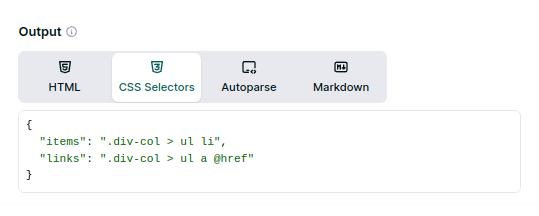 For more details, [check CSS Selectors documentation](/universal-scraper-api/features/css-extractor).
## When to use each method
Choose your data extraction method based on your specific needs:
* **CSS Selectors** - Best for custom data extraction when you know exactly what elements you need. Returns clean JSON data with your own key names and structure.
* **Output Filters** - Ideal for extracting common data types like emails, phone numbers, images, and links. Perfect when you need standard web data without custom parsing.
* **External Libraries** - Perfect when you need complex parsing logic, custom data transformations, or when integrating with existing parsing workflows.
## Further Reading
For more advanced CSS selector patterns and examples for complex web layouts, check out our [Advanced CSS Selector Examples](/universal-scraper-api/troubleshooting/advanced-css-selector-examples) guide.
For more details, [check CSS Selectors documentation](/universal-scraper-api/features/css-extractor).
## When to use each method
Choose your data extraction method based on your specific needs:
* **CSS Selectors** - Best for custom data extraction when you know exactly what elements you need. Returns clean JSON data with your own key names and structure.
* **Output Filters** - Ideal for extracting common data types like emails, phone numbers, images, and links. Perfect when you need standard web data without custom parsing.
* **External Libraries** - Perfect when you need complex parsing logic, custom data transformations, or when integrating with existing parsing workflows.
## Further Reading
For more advanced CSS selector patterns and examples for complex web layouts, check out our [Advanced CSS Selector Examples](/universal-scraper-api/troubleshooting/advanced-css-selector-examples) guide.