Many modern websites load data dynamically through background API calls rather than including everything in the initial HTML. These XHR (XMLHttpRequest) and Fetch requests often contain the exact data you need in a clean JSON format, making them more reliable than scraping HTML elements. This guide shows you how to identify and capture these network requests using two ZenRows approaches: the Universal Scraper API for simple integration, and the Scraping Browser for advanced control.
While ZenRows can capture XHR/Fetch requests during page rendering, this feature is designed as a supplementary capability rather than our core offering. ZenRows specializes in HTML content extraction and JavaScript rendering for traditional web scraping scenarios.This guide demonstrates the capability for educational purposes and specific use cases where understanding background API calls enhances your web scraping strategy.

Who is this for?

This guide is for developers who need to extract data from websites that load content dynamically through JavaScript and API calls, such as infinite scroll pages, search results, or real-time data feeds.

What you’ll learn

  • Identify XHR/Fetch requests using browser developer tools
  • Capture network requests with the Universal Scraper API
  • Use the Scraping Browser to intercept and analyze API calls

Understanding Network Requests

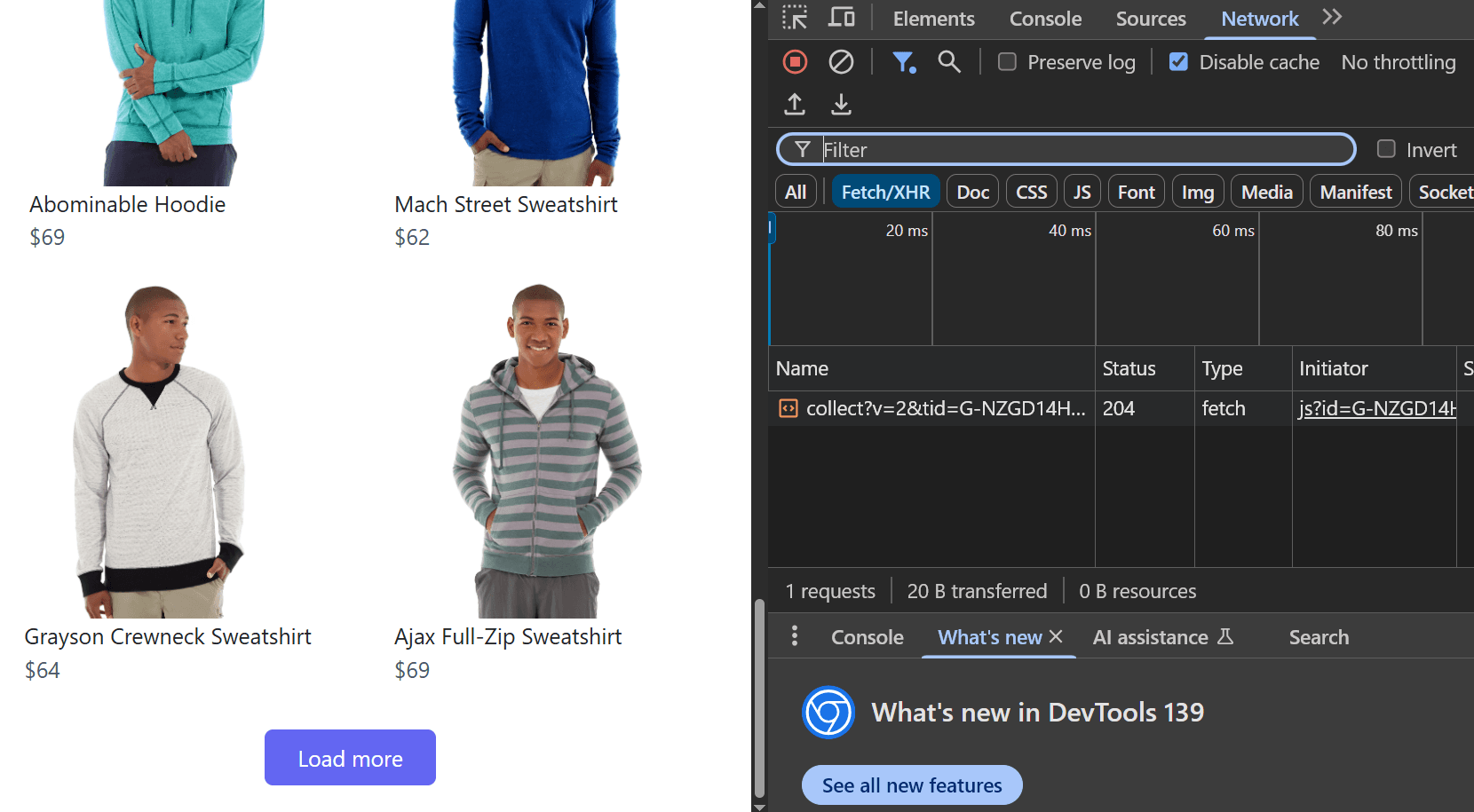
The first step is understanding which network requests load the data you need. We’ll use Chrome’s Developer Tools to monitor network activity and identify the relevant API calls. Let’s use a practical example with a “Load More” page:
1

Open Developer Tools

  1. Navigate to https://www.scrapingcourse.com/button-click
  2. Right-click anywhere on the page and select Inspect
  3. Go to NetworkFetch/XHR
Chrome Network Inspection
2

Trigger Network Activity

  1. Click the Load More button on the site to trigger a data-loading event
  2. Observe the changes in the Fetch/XHR calls
  3. Each click calls a products?offset API as shown in the image below
  4. Click one of the offset requests to view the API endpoint that was called
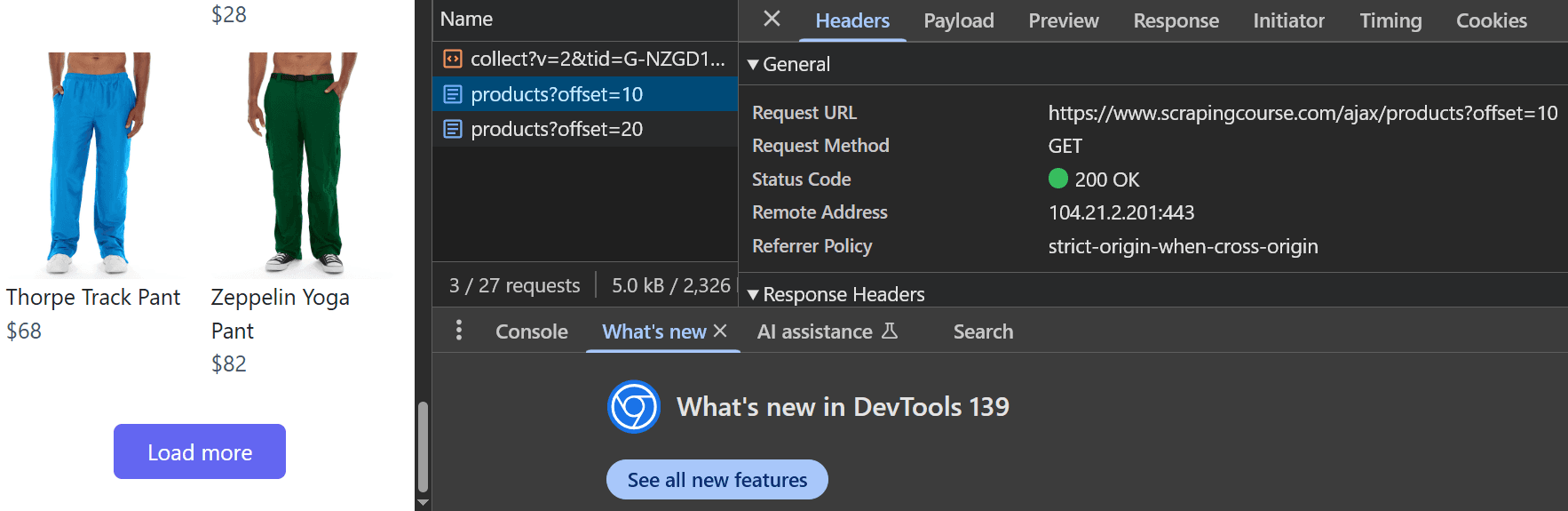
Load More API Network
3

Analyze the API Endpoint

The network inspection shows that the requested API endpoint is: https://www.scrapingcourse.com/ajax/products?offset=10Opening this URL directly in your browser returns the raw data without visual design:
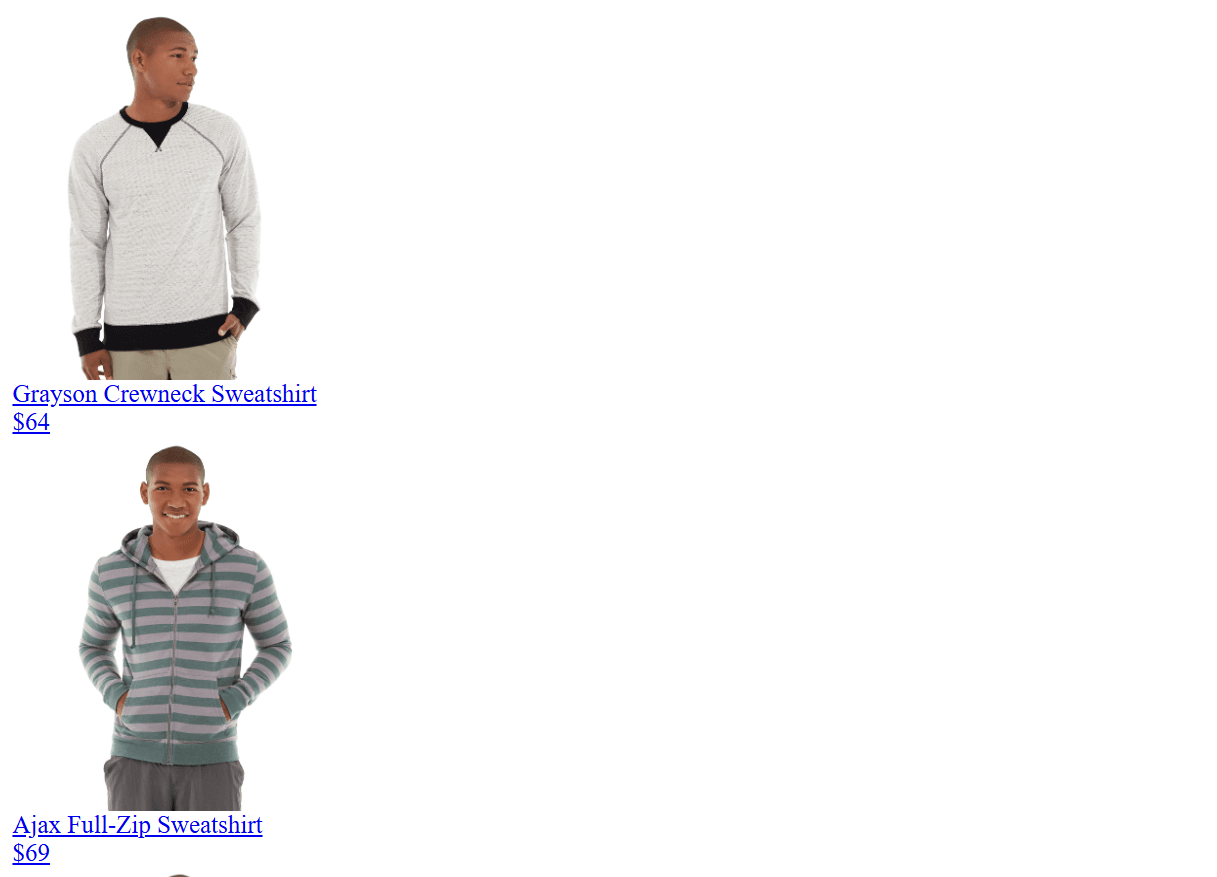
API Call No Visual Design
The offset query parameter determines which set of data is loaded. For example:
  • offset=0 loads the initial data visible in the viewport
  • offset=10 loads the next set of products
  • offset=50 loads data for the sixth scroll position
Network request behavior can vary significantly between websites. Some endpoints may return HTML pages, while others provide JSON or different data formats. Always inspect the specific network responses of your target site to determine the appropriate handling method.

Method 1: Universal Scraper API

The Universal Scraper API provides the simplest way to capture network requests. Use the json_response parameter to automatically capture all XHR/Fetch requests made during page rendering, combined with js_instructions to trigger the necessary interactions.
Python
# pip install requests
import requests

url = 'https://www.scrapingcourse.com/button-click'
apikey = 'YOUR_ZENROWS_API_KEY'
params = {
    'url': url,
    'apikey': apikey,
	'js_render': 'true',
	'json_response': 'true', # Capture network requests made during page render
	'js_instructions': """[
        {"wait_for":"#load-more-btn"},
        {"click":"#load-more-btn"},
        {"wait":1000}
    ]""",
	'premium_proxy': 'true',
}
response = requests.get('https://api.zenrows.com/v1/', params=params)
print(response.text)
You can find more information about the JavaScript Instructions parameter in the JavaScript Instructions and JSON Response parameters in the JSON Response documentation pages.
Response example:
JSON Response
{
  "html": "<html><body><h1>..... HTML content .....</h1></body></html>",
  "xhr": [
    ... other XHR requests ...
    {
      "url": "https://www.scrapingcourse.com/ajax/products?offset=10",
      "body": "<div class=\"product-item flex flex-col items-center rounded-lg\">...</div>...</body></html>",
      "status_code": 200,
      "method": "GET",
      "headers": {
        headers ...
      },
      "request_headers": {
        "Referer": "https://www.scrapingcourse.com/button-click",
        request_headers ...
      }
    }
  ],
  "js_instructions_report": { ... other JavaScript Instructions report ... }
}

Method 2: Scraping Browser

The Scraping Browser provides more control over network request capture and allows you to process requests in real-time as they occur. It is recommended to use the Scraping Browser for more complex scraping tasks or when the Universal Scraper API is not enough.
import { connect } from 'puppeteer-core';

async function captureNetworkRequests(url) {
    const browser = await connect({
        browserWSEndpoint: 'wss://browser.zenrows.com?apikey=YOUR_ZENROWS_API_KEY'
    });

    const page = await browser.newPage();

    // Array to store captured requests
    const capturedRequests = [];

    // Intercept network requests
    await page.setRequestInterception(true);

    page.on('request', (request) => {
        // Log outgoing requests
        console.log(`Request: ${request.method()} ${request.url()}`);
        request.continue();
    });

    page.on('response', async (response) => {
        const url = response.url();
        const method = response.request().method();
        const status = response.status();

        // Filter for XHR/Fetch requests (adjust as needed)
        if (
            url.includes('api') || url.includes('ajax') ||
            response.request().resourceType() === 'xhr' ||
            response.request().resourceType() === 'fetch'
        ) {
            try {
                const responseBody = await response.text();
                const headers = response.headers();
                const requestHeaders = response.request().headers();

                capturedRequests.push({
                    url: url,
                    method: method,
                    status_code: status,
                    body: responseBody,
                    headers: headers,
                    request_headers: requestHeaders,
                    resource_type: response.request().resourceType()
                });

                console.log(`Captured: ${method} ${url} (${status})`);
            } catch (error) {
                console.error(`Error capturing response from ${url}:`, error);
            }
        }
    });

    try {
        // Navigate to the page with increased timeout
        await page.goto(url, { waitUntil: 'networkidle2', timeout: 60000 });

        // Wait for the "load more" button to be visible
        await page.waitForSelector('#load-more-btn', { visible: true, timeout: 30000 });

        // Wait for the AJAX request after clicking the button
        const [ajaxResponse] = await Promise.all([
            page.waitForResponse(
                response =>
                    response.url().includes('/ajax/products?offset=10') &&
                    response.status() === 200,
                { timeout: 20000 }
            ),
            page.click('#load-more-btn')
        ]);

        // Optionally: Log the AJAX response body directly
        const ajaxBody = await ajaxResponse.text();
        console.log('AJAX Response Body:', ajaxBody);

        // Wait a bit for any additional network activity
        await page.waitForTimeout(3000);

        // Get the final HTML
        const html = await page.content();

        return {
            html: html,
            xhr_requests: capturedRequests
        };
    } catch (error) {
        console.error('Error during capture:', error);
        throw error;
    } finally {
        await browser.close();
    }
}

// Usage
captureNetworkRequests('https://www.scrapingcourse.com/button-click')
    .then(result => {
        console.log(`Captured ${result.xhr_requests.length} network requests`);

        result.xhr_requests.forEach((request, index) => {
            console.log(`\nRequest ${index + 1}:`);
            console.log(`URL: ${request.url}`);
            console.log(`Method: ${request.method}`);
            console.log(`Status: ${request.status_code}`);

            // Try to parse JSON response
            try {
                const jsonData = JSON.parse(request.body);
                console.log('JSON Response:', JSON.stringify(jsonData, null, 2));
            } catch (e) {
                console.log('Raw Response:', request.body.substring(0, 200) + '...');
            }

            // Special print for the request you care about
            if (request.url.includes('/ajax/products?offset=10')) {
                console.log('\n*** This is the AJAX call you wanted! ***');
                console.log('Full internals:');
                console.log(JSON.stringify(request, null, 2));
            }
        });
    })
    .catch(error => {
        console.error('Error:', error);
    });

Best Practices

Request Filtering:
  • Filter by URL patterns to capture only relevant API calls
  • Use resource type filtering to focus on XHR/Fetch requests
  • Monitor specific endpoints that contain the data you need
Performance Optimization:
  • Set appropriate wait times to ensure all requests complete
  • Use targeted selectors in wait_for instructions
  • Limit capture duration to avoid unnecessary data collection
Data Processing
  • Parse JSON responses when possible for structured data
  • Handle different response formats (JSON, XML, HTML)
  • Store request metadata (headers, status codes) for debugging
Error Handling:
  • Implement retry logic for failed network captures
  • Validate captured data before processing
  • Log network errors for troubleshooting

Troubleshooting

No XHR requests captured:
  • Ensure js_render is enabled
  • Increase wait times to allow requests to complete
  • Check if the target element exists and is clickable
  • Verify that JavaScript is required to load the content
Missing authentication in captured requests:
  • Use custom_headers parameter with the Universal Scraper API
  • Set headers before navigation with the Scraping Browser
  • Check if the site requires cookies or session tokens
Incomplete request data:
  • Increase the wait parameter to allow all requests to finish
  • Use wait_for with specific selectors instead of fixed timeouts
  • Monitor the network tab to understand the request timing
Request filtering not working:
  • Adjust URL pattern matching for your specific target site
  • Check the resource_type of requests you want to capture
  • Use broader filters initially, then narrow down based on results