

- Extract specific data points like product prices, titles, or links
- Transform unstructured HTML into structured JSON for easy processing
- Reduce response size by getting only relevant information
- Automate data collection from consistent page structures
- Build data pipelines that require predictable JSON output
The CSS Extractor works with both standard scraping and JavaScript rendering. For dynamic content that loads via AJAX, combine it with
js_render=true for complete data extraction.How CSS Extractor works
CSS Extractor processes the rendered HTML content using CSS selectors or XPath expressions to identify and extract specific elements. The browser parses the page content, locates elements matching your selectors, and returns the extracted data in a structured JSON format. This process captures:- Text content from matching elements
- Attribute values (href, src, data attributes, etc.)
- Multiple elements as arrays when selectors match several items
- Complex data structures using nested extraction rules
Basic usage
Enable CSS Extractor by adding thecss_extractor parameter with a JSON object defining your extraction rules:
Extraction patterns
The CSS Extractor supports various extraction patterns to handle different types of content and data structures.Basic text extraction
Extract text content from elements using standard CSS selectors:| Extraction Rule | Sample HTML | Description | JSON Output |
|---|---|---|---|
| {“title”:“h1”} | <h1>Welcome to Our Store</h1> | Extract text from h1 element | {“title”: “Welcome to Our Store”} |
| {“description”:“p.intro”} | <p class=“intro”>Best products here</p> | Extract text from paragraph with intro class | {“description”: “Best products here”} |
| {“content”:“#main-content”} | <div id=“main-content”>Page content</div> | Extract text from element with specific ID | {“content”: “Page content”} |
Attribute extraction
Extract specific attributes from elements by adding@attribute_name to your selector:
| Extraction Rule | Sample HTML | Description | JSON Output |
|---|---|---|---|
| {“links”:“a @href”} | <a href=“/products”>Products</a> | Extract href attribute from links | {“links”: “/products”} |
| {“images”:“img @src”} | <img src=“photo.jpg” alt=“Product” /> | Extract src attribute from images | {“images”: “photo.jpg”} |
| {“form_token”:“input[name=_token] @value”} | <input name=“_token” value=“abc123” /> | Extract value attribute from hidden input | {“form_token”: “abc123”} |
Multiple elements
When your selector matches multiple elements, CSS Extractor automatically returns an array:| Extraction Rule | Sample HTML | Description | JSON Output |
|---|---|---|---|
| {“products”:“h2.product-title”} | <h2 class=“product-title”>Product 1</h2><h2 class=“product-title”>Product 2</h2> | Extract text from multiple elements | {“products”: [“Product 1”, “Product 2”]} |
| {“prices”:“.price”} | <span class=“price”>$19.99</span><span class=“price”>$29.99</span> | Extract text from multiple price elements | {“prices”: [“$19.99”, “$29.99”]} |
| {“all_links”:“a @href”} | <a href=“/page1”>Link 1</a><a href=“/page2”>Link 2</a> | Extract href attributes from multiple links | {“all_links”: [“/page1”, “/page2”]} |
Advanced selectors
Use complex CSS selectors for precise targeting:| Extraction Rule | Sample HTML | Description | JSON Output |
|---|---|---|---|
| {“emails”:“a[href^=‘mailto:’] @href”} | <a href=“mailto:contact@example.com”>Email us</a> | Extract href attribute for mailto links | {“emails”: “mailto:contact@example.com”} |
| {“hidden_values”:“input[type=hidden] @value”} | <input type=“hidden” value=“secret123” /> | Extract value attribute from hidden inputs | {“hidden_values”: “secret123”} |
| {“data_attrs”:“button @data-product-id”} | <button data-product-id=“12345”>Buy Now</button> | Extract custom data attribute | {“data_attrs”: “12345”} |
XPath expressions
For more complex extractions, use XPath expressions. XPath is a query language for selecting nodes in XML/HTML documents, offering more flexibility than CSS selectors:| Extraction Rule | Sample HTML | Description | JSON Output |
|---|---|---|---|
| {“heading”:“//h1”} | <h1>Page Title</h1> | Extract text using XPath | {“heading”: “Page Title”} |
| {“image_src”:“//img @src”} | <img src=“banner.png” alt=“Banner” /> | Extract src attribute using XPath | {“image_src”: “banner.png”} |
| {“text_content”:“//div[@class=‘content’]//text()”} | <div class=“content”>Hello <span>World</span></div> | Extract all text content using XPath | {“text_content”: “Hello World”} |
Complex extraction example
Here’s a comprehensive example showing how to extract structured product data from an e-commerce page:JSON
When to use CSS Extractor
CSS Extractor is essential for these scenarios: E-commerce data collection- Product information - Extract prices, titles, descriptions, and availability
- Inventory monitoring - Track stock levels and price changes
- Competitor analysis - Collect product data from multiple sources
- Review aggregation - Extract customer reviews and ratings
- Category browsing - Collect product listings from category pages
- News articles - Extract headlines, authors, publication dates, and content
- Blog posts - Collect titles, excerpts, and metadata
- Job listings - Collect job titles, companies, locations, and requirements
- Real estate - Extract property details, prices, and contact information
- Price tracking - Monitor price changes across multiple retailers
- Content changes - Track updates to specific page elements
- SEO analysis - Extract meta tags, headings, and structured data
- Form data - Collect form fields and validation tokens
- API endpoint discovery - Extract AJAX endpoints and data sources
- Quality assurance - Verify that specific elements appear correctly
- A/B testing - Extract different page variants for comparison
- Performance monitoring - Track loading of specific page components
- Integration testing - Verify data consistency across different pages
For pages with dynamic content that loads via JavaScript, combine CSS Extractor with
js_render=true to ensure all content is captured before extraction.Best practices
Combine with appropriate ZenRows parameters
Maximize your extraction success by strategically combining CSS Extractor with other ZenRows features. While CSS Extractor works independently with static content, pairing it with complementary parameters ensures reliable data extraction across different website types and protection levels.For dynamic content that loads via JavaScript
When targeting websites that render content dynamically, enable JavaScript rendering and use timing controls to ensure all elements are present before extraction:Python
For protected or geo-restricted websites
Combine with proxy features to access content that may be blocked or restricted by location:Python
For complex interactive websites
Use JavaScript Instructions to simulate user interactions before extracting data:Python
Choose stable and reliable selectors
The foundation of successful CSS extraction is using selectors that remain consistent over time. Prioritize semantic and stable attributes over auto-generated or fragile ones:Python
data-*attributes (e.g.,[data-testid="product"])- Semantic IDs (e.g.,
#product-title) - Semantic class names (e.g.,
.product-description) - Element types with attributes (e.g.,
img[alt="product"]) - Complex descendant selectors (use sparingly)
Test selectors before implementation
Always verify your CSS selectors work correctly on the target website before deploying them in production. This prevents extraction failures and ensures reliable data collection.Access DevTools console
- Right-click on the page and select “Inspect” or press F12
- Navigate to the “Console” tab
- Test your selector using JavaScript:
Troubleshooting
Common issues and solutions
| Issue | Cause | Solution |
|---|---|---|
| Empty or null values | Selector doesn’t match any elements | Verify selector syntax and element existence |
| Missing dynamic content | Content loads after page render | Add js_render=true and increase wait time |
| Incorrect attribute extraction | Wrong attribute name or syntax | Check attribute exists and use correct @attribute syntax |
| Partial data extraction | Elements load asynchronously | Use wait_for parameter to wait for specific elements |
| Selector too specific | Overly complex selector breaks easily | Use more general, stable selectors |
| Large response size | Extracting too much data | Focus on essential data points only |
Handling selector failures
If ZenRows cannot find matching elements for your CSS selectors, it will retry internally several times. If selectors still don’t match after the timeout period, you may receive incomplete data or empty results. This typically means your selectors don’t exist in the final HTML or are too fragile to be reliable.Selector not present in final HTML
Inspect the site using browser DevTools
- Open the target page in your browser
- Right-click the target content and choose “Inspect”
- Check if your selector exists after the page fully loads
Verify your selector
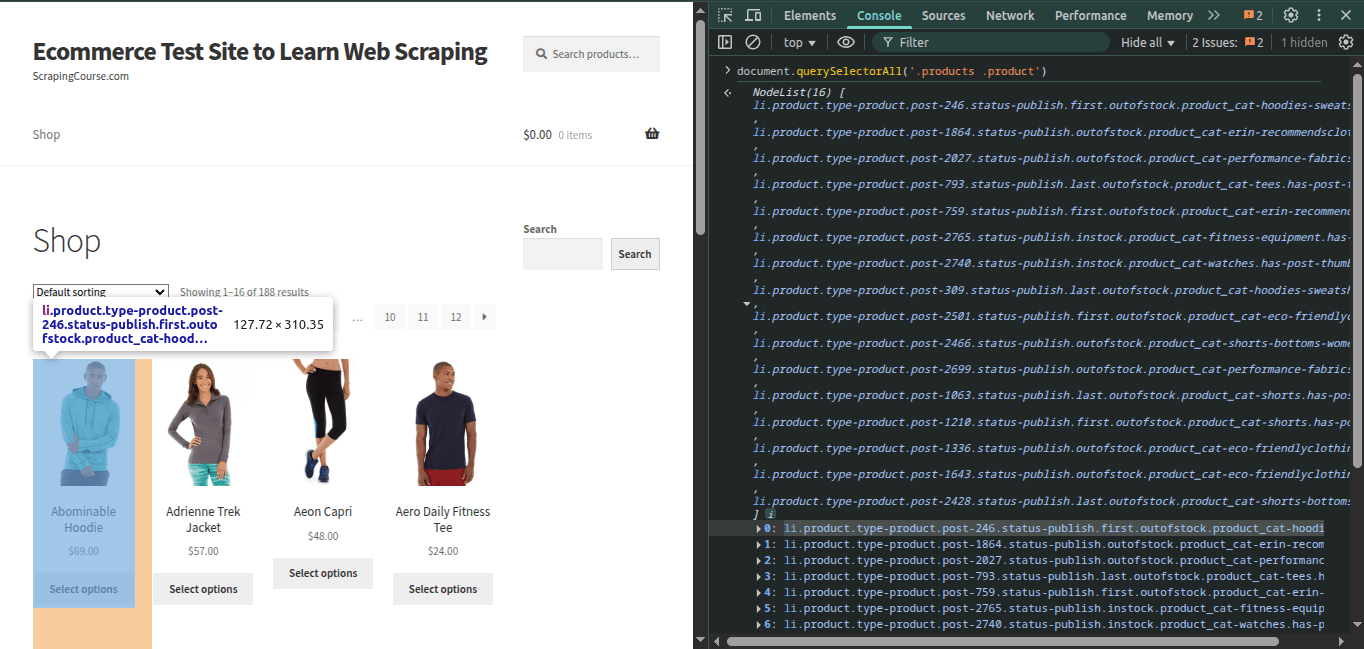
- Run
document.querySelectorAll('your_selector')in the browser console - If it returns no elements, your selector is incorrect
Dynamic or fragile selectors
Some websites use auto-generated class names that change frequently. These are considered dynamic and unreliable for consistent data extraction.- Re-check the page in DevTools if a previously working selector fails
- Look for stable attributes like
data-*attributes - Use attribute-based selectors, which are more stable over time
Python
Python
Content is conditional or missing
When scraping at scale, it’s common to encounter pages where expected content is missing or appears under certain conditions. Common scenarios where selectors might fail:- Inexistent elements - The product exists, but elements like price or “Add to cart” button are missing
- Deleted or unavailable pages - Product URLs may be valid, but the product has been removed
- Failed page loads - The page might fail to load properly, causing selectors to miss content
- Conditional rendering - Content only renders based on user location, browser behavior, or interactions
-
Monitor original status codes
PythonFor more details check the original_status documentation
-
Allow error status codes
PythonFor more details check the allowed_status_codes documentation
-
Best practices for handling missing content
- Anticipate that some selectors may not match if content is missing
- Include fallback selectors for critical data points
- Check for error indicators in your extraction rules
- Monitor extraction success rates to detect site changes
Selector exists but extraction still fails
Sometimes your CSS selector is correct but still doesn’t extract the expected data: Common causes and solutions:-
Element is hidden (
display: none) - CSS Extractor can still extract hidden content. If you need visible elements only, target child elements or wrappers that appear when content is shown.You can find more information about advanced CSS selectors here. -
Content appears after user interaction - Use
js_instructionsto simulate clicks or scrolls before extraction:Python -
Page relies on slow external scripts - Try waiting for different selectors that appear earlier, or increase wait times
Python
Pricing
Thecss_extractor parameter is included at no additional cost with all ZenRows requests - you only pay extra for JavaScript Render and Premium Proxy when used.
Frequently Asked Questions (FAQ)
Can I use CSS Extractor without JavaScript rendering?
Can I use CSS Extractor without JavaScript rendering?
Yes, CSS Extractor works with both standard scraping and JavaScript rendering. Use
js_render=true only when you need to extract content that loads dynamically via JavaScript.What's the difference between CSS selectors and XPath?
What's the difference between CSS selectors and XPath?
CSS selectors are simpler and more familiar to web developers, while XPath offers more powerful querying capabilities. CSS selectors are sufficient for most use cases, but XPath is useful for complex document traversal and text manipulation.
How many extraction rules can I include in one request?
How many extraction rules can I include in one request?
There’s no strict limit on the number of extraction rules, but keep in mind that more complex extractions may increase processing time and response size. Focus on extracting only the data you actually need.
Can I extract nested or hierarchical data structures?
Can I extract nested or hierarchical data structures?
CSS Extractor returns flat JSON structures. For complex nested data, you may need to make multiple requests or use different selectors to extract related data points separately.
What happens if my selector matches no elements?
What happens if my selector matches no elements?
If a selector doesn’t match any elements, that field will be null or omitted from the JSON response. This won’t cause an error, but you should validate your results to ensure critical data was extracted.
Can I combine CSS Extractor with other ZenRows features?
Can I combine CSS Extractor with other ZenRows features?
Yes, CSS Extractor works seamlessly with all ZenRows features including Premium Proxy, JavaScript rendering, Screenshots, and Block Resources. This allows you to handle complex scraping scenarios while getting structured data output.
How do I extract data from elements that appear after user interactions?
How do I extract data from elements that appear after user interactions?
Use JavaScript Instructions to simulate user interactions (clicks, scrolls, form submissions) before extraction. The CSS Extractor will then process the updated page content after these interactions complete.
Is there a way to extract only the first match when multiple elements exist?
Is there a way to extract only the first match when multiple elements exist?
CSS Extractor automatically returns arrays for multiple matches. To get only the first match, you can either make your selector more specific or process the results in your code to take only the first item from arrays.