

What Is Dify?
Dify is an open-source platform for building LLM applications. You assemble workflows, chatflows, and agents on a visual canvas by connecting nodes such as LLM calls, knowledge retrieval, code, and tools. It runs as a hosted service atcloud.dify.ai or self-hosted on your own infrastructure.
Dify’s plugin system lets third parties ship tools that show up next to the built-in ones. The Zenrows plugin is one of them, published and maintained by Zenrows.
Why Connect Zenrows to Dify?
- Workflows that don’t get blocked: a plain HTTP request to a site behind Cloudflare, DataDome, or similar gets a challenge page, and the LLM node then reasons over the wrong content. Zenrows returns the real page.
- Markdown by default: the Fetch tool returns clean Markdown, which costs far fewer tokens than raw HTML when you pass it to an LLM node.
- Structured data without parsing code: the Extract tool returns JSON fields, so you don’t need a Code node to pull prices or titles out of HTML.
- Many URLs in one job: the Batch tools submit up to 1,000 URLs per call as an asynchronous job (a plugin limit), instead of looping a Fetch node.
- One credential for the workspace: you authorize the plugin once, and every member of the workspace can use it in their apps.
Available Tools
The plugin adds five tools under the Zenrows provider:
Use Fetch when you want the page, Extract when you want fields from the page, and Batch when you have more URLs than one request should carry.
Prerequisites
- A Dify workspace, either on Dify Cloud or self-hosted. Self-hosted instances need Dify 1.11.4 or later.
- A Zenrows API key from your Zenrows dashboard.
- For self-hosted Dify: outbound HTTPS access to
api.zenrows.comandasync.api.zenrows.com. The plugin needs no inbound connections.
Set Up the Zenrows Plugin
1
Install the plugin from the Dify Marketplace
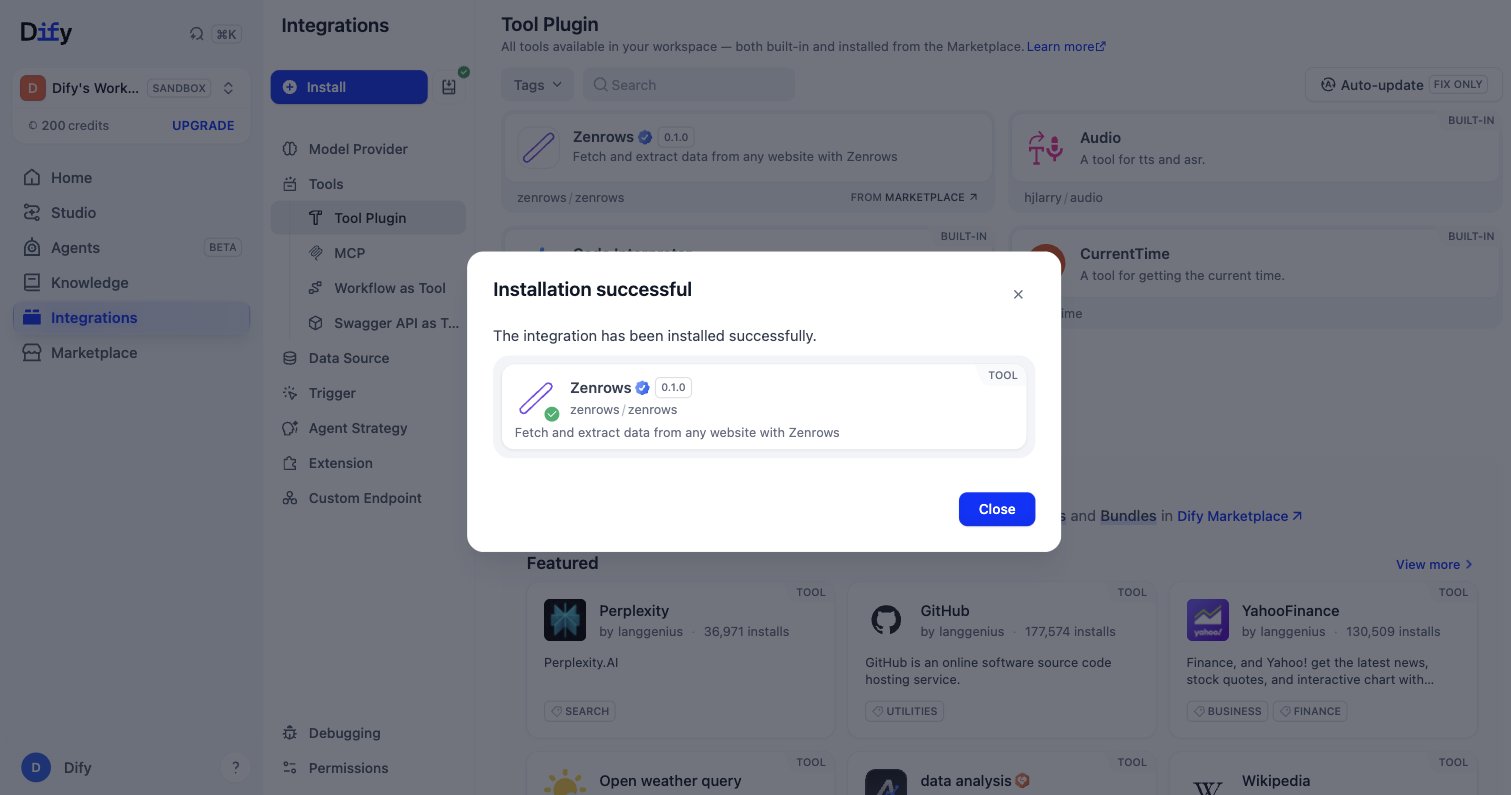
Open the Zenrows plugin page and click Install. Dify opens your workspace and installs the plugin. You can also search for Zenrows from Marketplace in the Dify sidebar.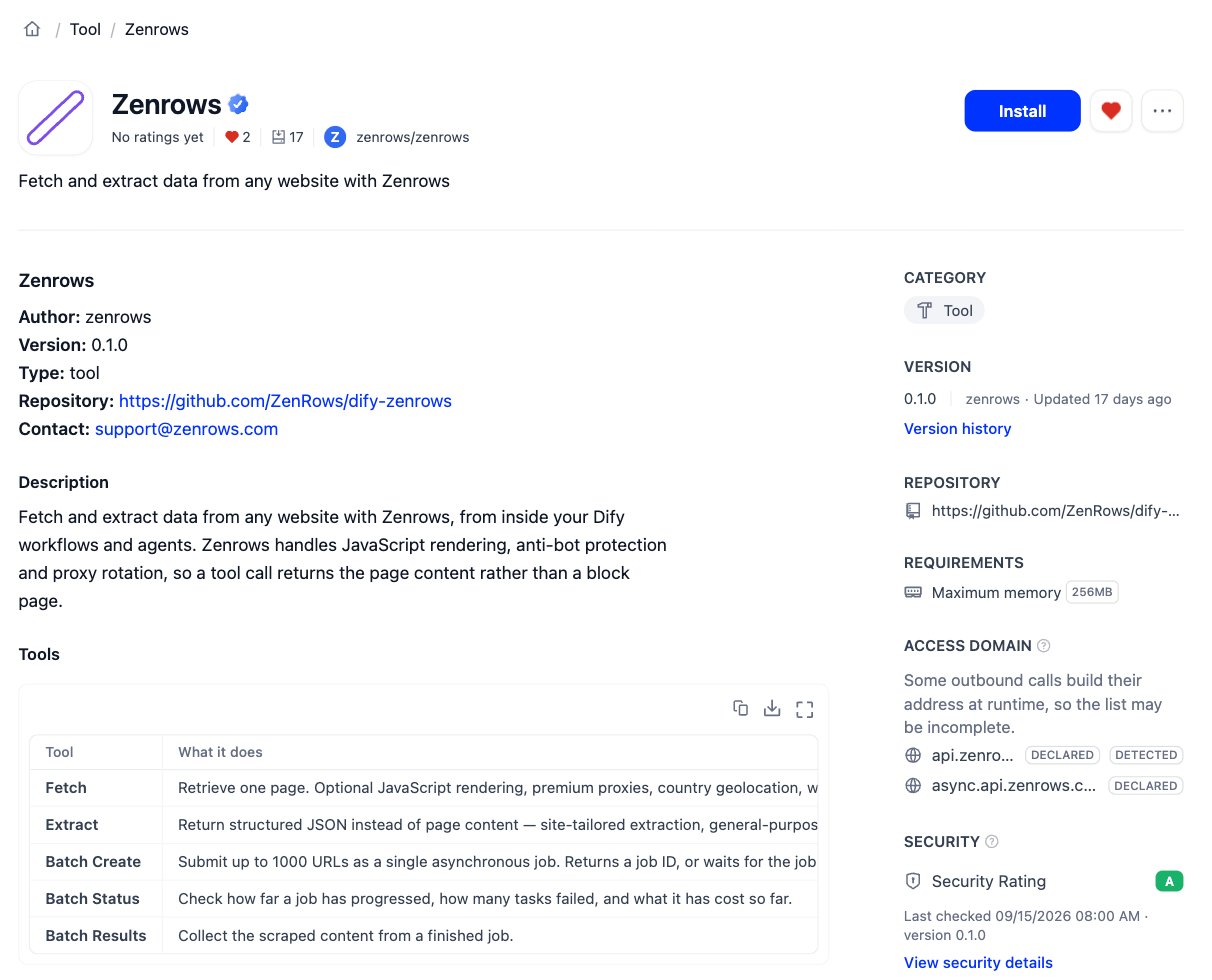
2
Authorize the plugin with your API key
In Integrations > Tools > Tool Plugin, click the Zenrows card, then click API Key Authorization Configuration. Fill in the dialog: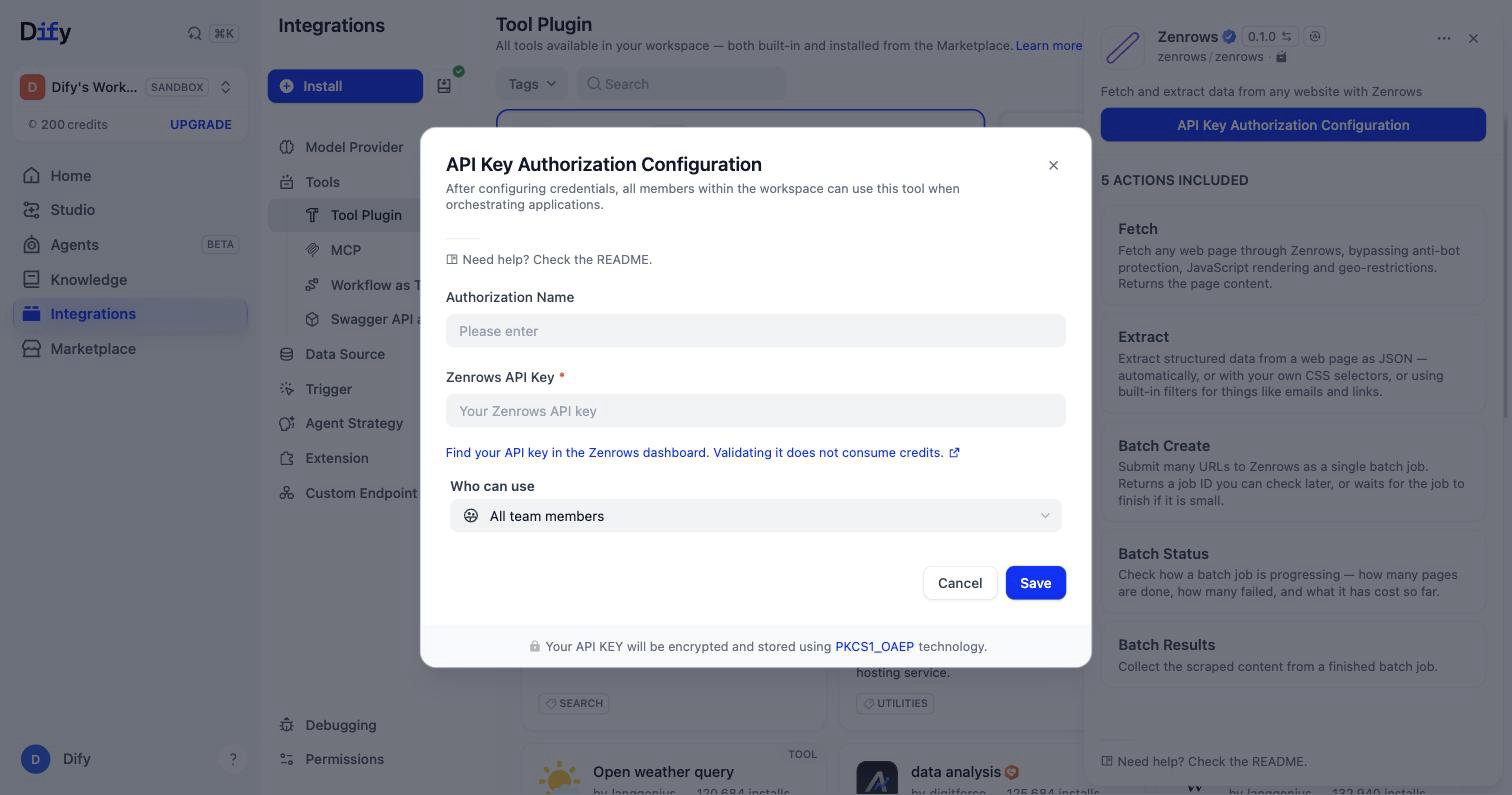
- Authorization Name: any label, for example
Zenrows. - Zenrows API Key: paste your key from the Zenrows dashboard.
- Who can use: leave All team members, or restrict it.
Build a Workflow That Summarizes Any Web Page
This example builds a four-node workflow: it takes a URL, fetches the page through Zenrows as Markdown, has an LLM summarize it, and returns the summary.1
Create a workflow with a URL input
In Studio, click Create from Blank, choose Workflow, name it, and click Create. Pick User Input as the start node, then click + next to Input Field and add a Short Text field with the variable name
url.2
Add the Zenrows Fetch tool
Under Next Step, click Select Next Step, open the Tools tab, search for 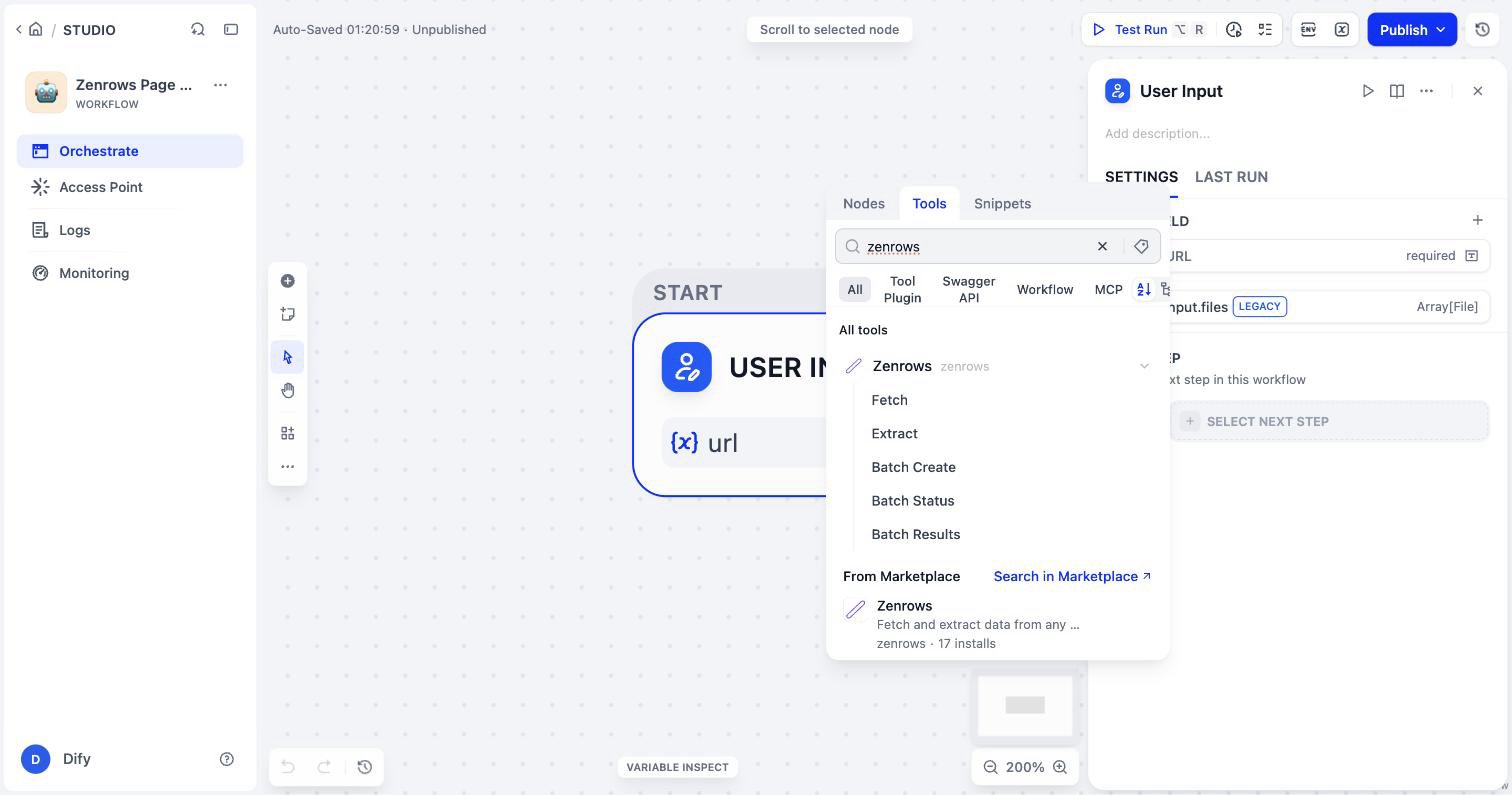
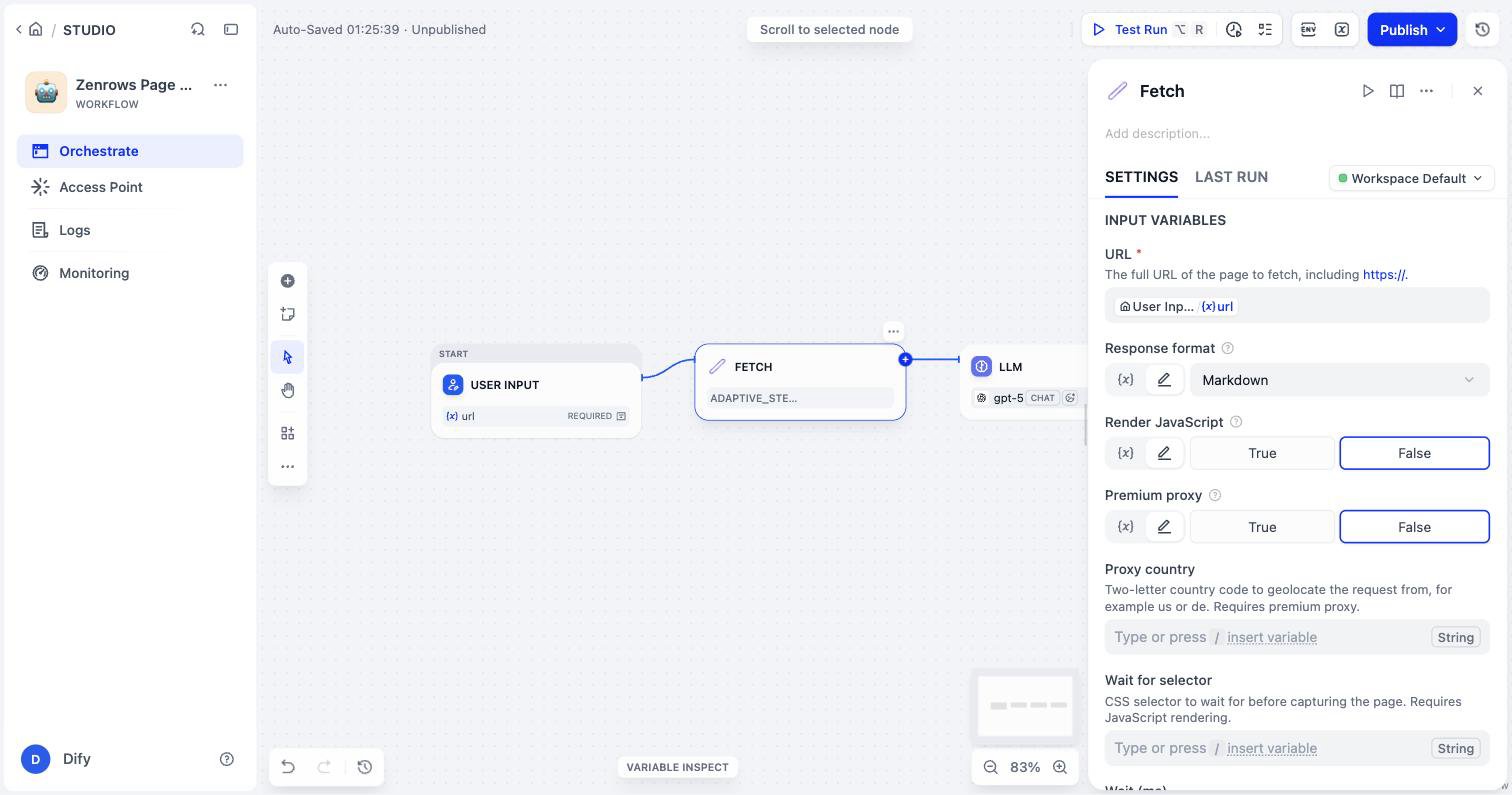
zenrows, and click Fetch./ and select the User Input url variable. Leave Response format on Markdown and the other settings at their defaults.3
Pass the page to an LLM node
From the Fetch node, add an LLM node. In its System prompt, write an instruction such as 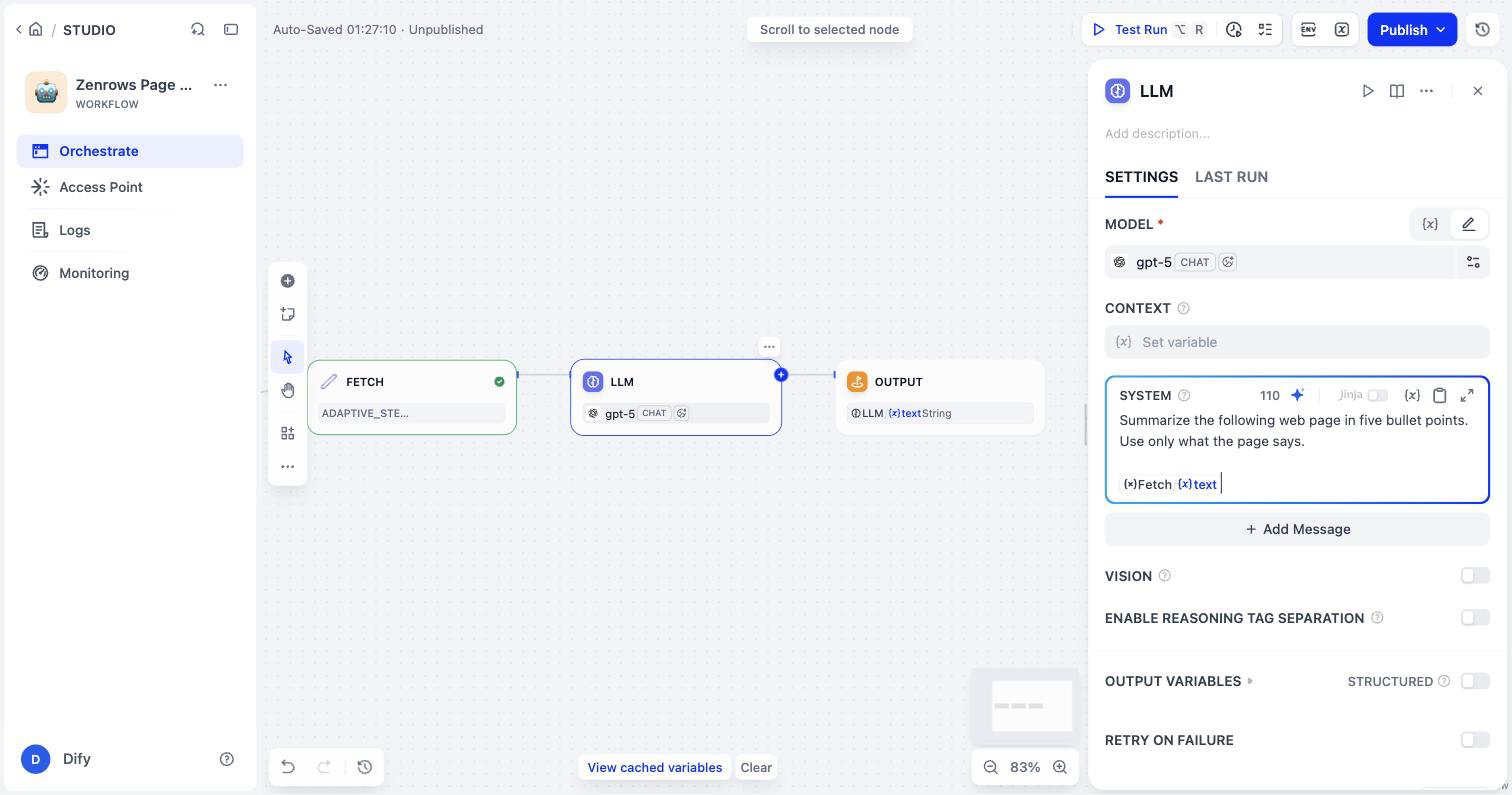
Summarize the following web page in five bullet points. Use only what the page says. On a new line, type { and select the Fetch node’s text variable.4
Return the summary and run it
From the LLM node, add an Output node with one variable, 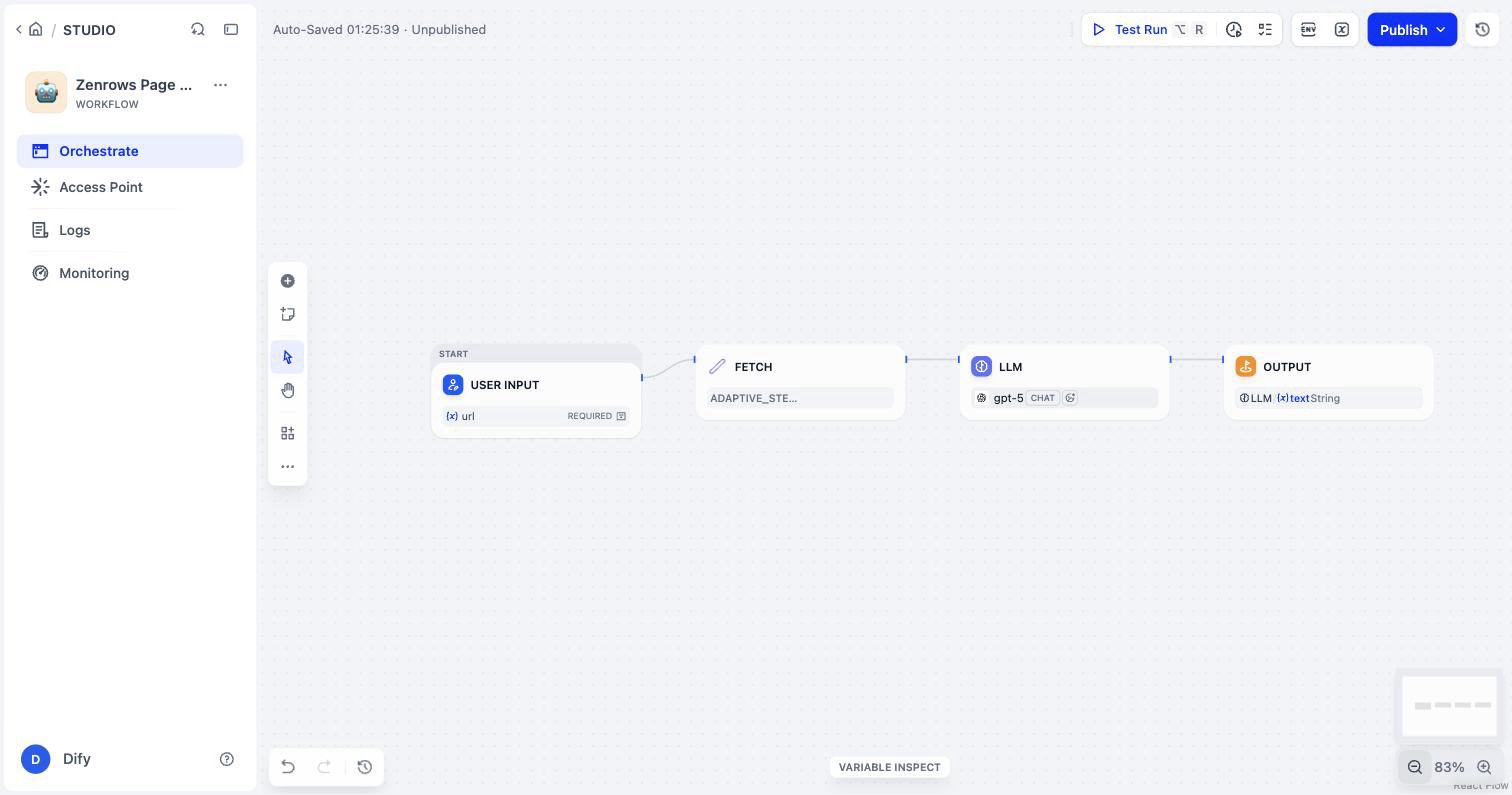
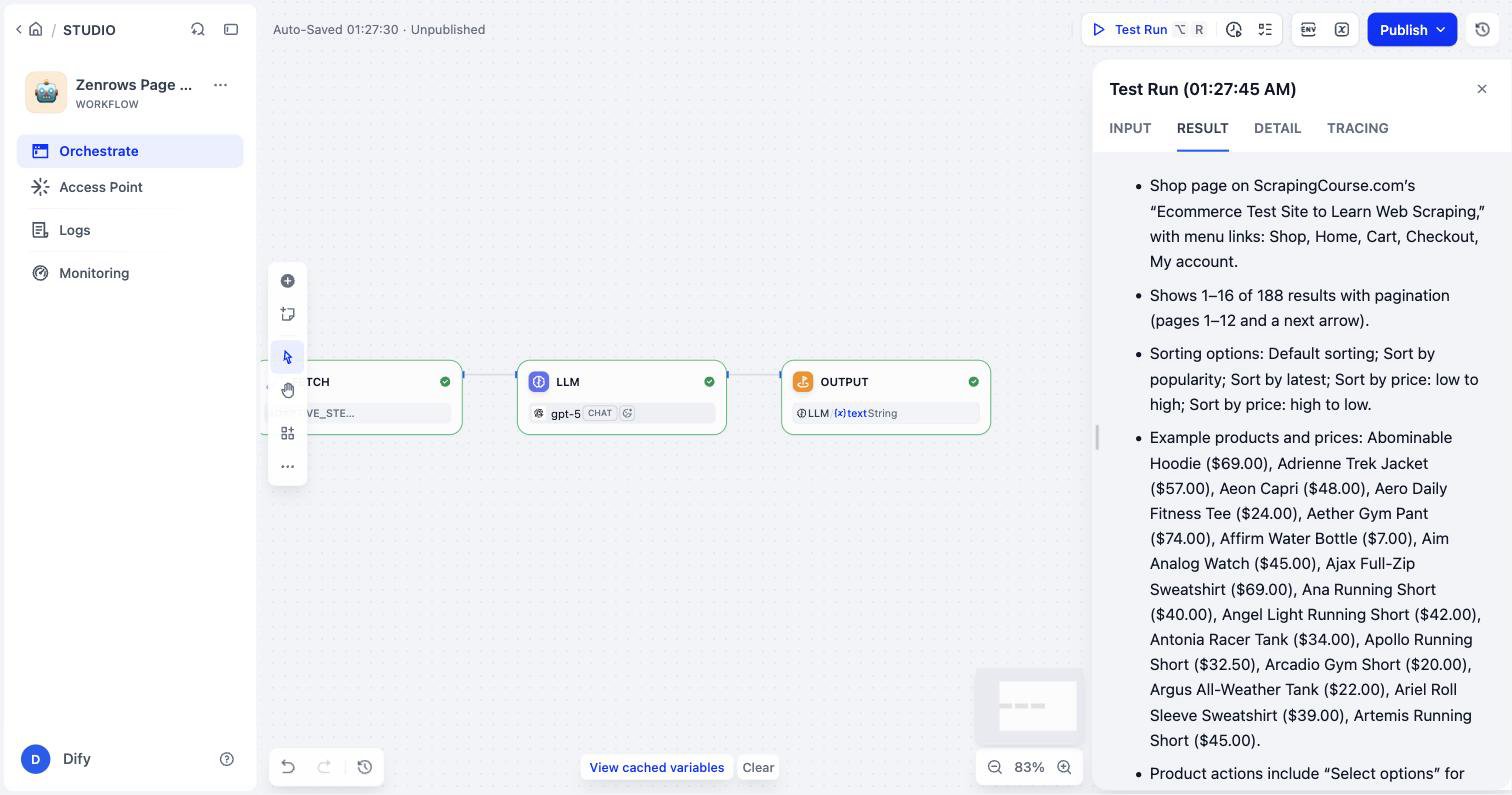
summary, set to the LLM node’s text. The finished workflow looks like this:https://www.scrapingcourse.com/ecommerce/ as the URL, and click Start Run. The Result tab shows the summary.Handle Protected and JavaScript-Heavy Pages
Fetch and Extract have Adaptive stealth turned on by default. With it on, Zenrows starts with a basic request and escalates to JavaScript rendering or Premium Proxies only when the target needs them, so most protected pages work without changing any settings. See Adaptive Stealth Mode for how escalation works and what it costs. Leave the Fetch and Extract settings at their defaults unless you have a specific reason to change them. Adaptive stealth already decides when a page needs a browser or a residential IP.Work with Tool Outputs
Each tool returns its result in Dify’s standardtext and json outputs. Some also return named variables you can reference directly:
For a batch, chain the tools: Batch Create, then Batch Status with the
job_id until finished is true, then Batch Results. Leave Wait for completion off for more than a few dozen URLs. A tool call can’t run longer than about 100 seconds, so a large job won’t finish inside one call.
Troubleshooting
The Zenrows tools don’t appear in the node picker
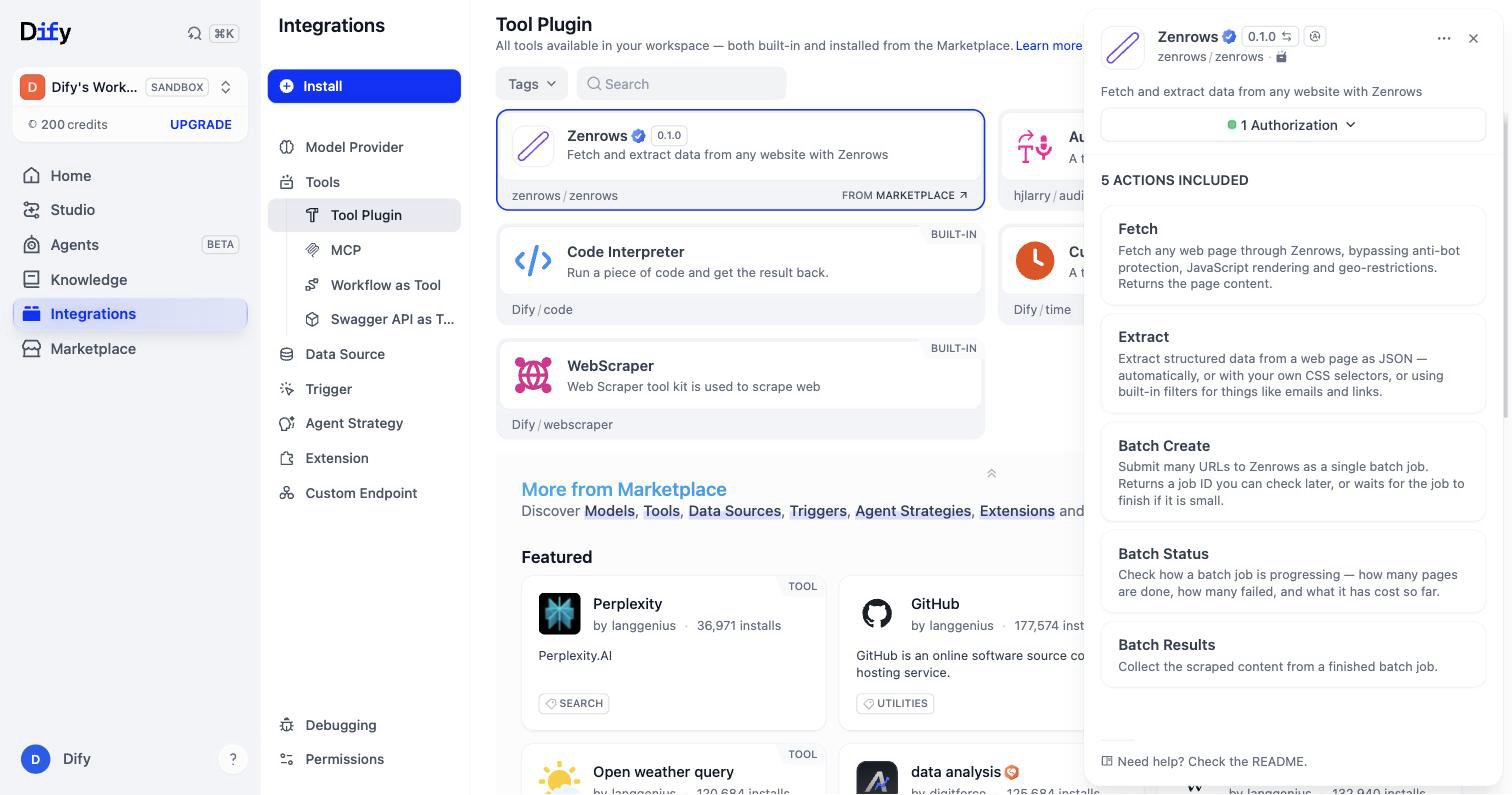
The plugin isn’t installed in this workspace, or it has no authorization. Open Integrations > Tools > Tool Plugin, click Zenrows, and confirm the panel shows 1 Authorization. If it shows API Key Authorization Configuration instead, add your key.Authorization fails when saving the key
Copy the key again from your Zenrows dashboard and check for leading or trailing spaces. On self-hosted Dify, confirm the instance can reachapi.zenrows.com over HTTPS.
Variable ... not found in the node after Fetch or Extract
The downstream node references content, url, status_code, or data from Fetch or Extract. Those aren’t populated as variables in plugin version 0.1.0. Reference text instead, or read the field from the json output.
”Turn off Adaptive stealth” error
The plugin rejects the request before it reaches Zenrows when Adaptive stealth is on together with Render JavaScript, Premium proxy, Screenshot, PDF as the response format, Wait for selector, Wait (ms), or JavaScript instructions. Zenrows doesn’t accept those combinations either.- If you set Render JavaScript or Premium proxy to True, set it back to False. Adaptive stealth turns them on automatically when a page needs them.
- If you need a screenshot, a PDF, a wait condition, or JavaScript instructions, turn Adaptive stealth off for that node. Those options require a browser, so you also control rendering and proxies yourself.
The page comes back empty or incomplete
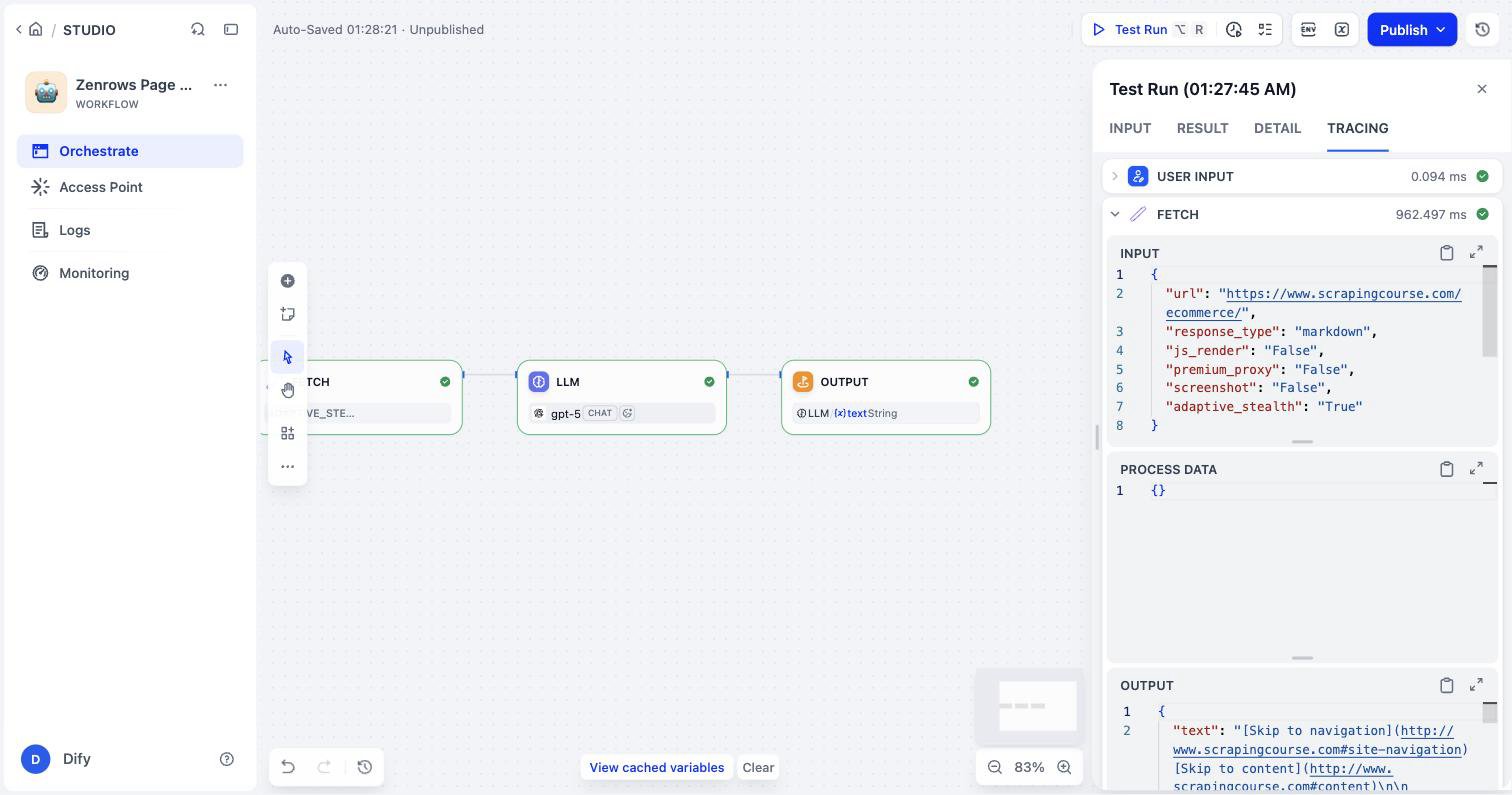
Open the Tracing tab and check the Fetch node’s output. If the text is a login wall or a cookie banner rather than the page you expected, the content isn’t publicly available at that URL. If the target is consistently returning incomplete content, contact Zenrows support with the URL.Batch Create times out with Wait for completion on
Waiting gives up after about 100 seconds. Turn Wait for completion off and poll with Batch Status instead.Further Reading
- Zenrows Plugin on the Dify Marketplace
- Plugin Source Code on GitHub
- Dify Tool Node Documentation
- Fetch API Reference
- Batch Introduction
Frequently Asked Questions
Is the Zenrows plugin for Dify official?
Is the Zenrows plugin for Dify official?
Yes. Zenrows publishes and maintains it, and its source is at
github.com/ZenRows/dify-zenrows.Does it work on self-hosted Dify?
Does it work on self-hosted Dify?
Yes, on Dify 1.11.4 or later, as long as the instance can make outbound HTTPS requests to
api.zenrows.com and async.api.zenrows.com.Can I use the Zenrows tools in a Dify agent, not just a workflow?
Can I use the Zenrows tools in a Dify agent, not just a workflow?
Yes. The tools are available anywhere Dify offers tools, including agents. Each tool ships a model-facing description, so an agent can decide when to fetch a page, extract fields, or start a batch.
Does validating my API key cost credits?
Does validating my API key cost credits?
No. Dify validates the key when you save the authorization, and that check doesn’t consume Zenrows credits. Each tool call is billed like the equivalent Zenrows API request.
How is this different from calling the Zenrows API with an HTTP Request node?
How is this different from calling the Zenrows API with an HTTP Request node?
The plugin handles authentication, parameter validation, and error messages for you, and exposes each option as a field in the node. An HTTP Request node works too, but you build the query string, handle errors, and parse the response yourself.