

What Is Antigravity 2.0?
Antigravity 2.0 is Google’s dedicated platform for working with autonomous agents. It lets you orchestrate multiple agents working in parallel across independent projects, with support for dynamic subagents, scheduled tasks, MCP integrations, and customizable skills. Connecting ZenRows enables every agent in your workspace to access live web data from any site, regardless of bot protection.Why Connect ZenRows to Antigravity 2.0?
- No more blocked agents: When trying to access protected sites, Antigravity’s agents encounter the same bot-protection walls as any other automated client. ZenRows automatically handles anti-bot evasion so your agents get the page every time.
- Cleaner data, lower token cost: ZenRows returns structured Markdown or JSON instead of raw HTML. Your agents process only what matters, with less noise and fewer tokens used per task.
- Reliable scheduled tasks: Antigravity’s
/schedulecommand lets agents run on a cron schedule for daily reports, price checks, and monitoring jobs. A blocked or blank page can break the entire run. ZenRows handles dynamic rendering and anti-bot bypass under the hood, enabling Antigravity to run scheduled tasks without interruptions. - No scraping code required: Describe what you want in plain English. Antigravity instructs ZenRows’ tools and returns structured results. No selectors, no HTTP clients, no infrastructure to maintain.
- Works with Gemini, ChatGPT, or Claude: Antigravity supports multiple models. Use ZenRows MCP with the LLM you’re already using without switching vendors.
What You Can Build with Antigravity 2.0 and ZenRows
- SEO and competitive research: Schedule an agent to scrape competitor landing pages, blog posts, and product pages daily. Have it compare what they’re publishing against your own site and surface gaps in topics, pages, and angles.
- Developer and API research: Point an agent at documentation sites, GitHub READMEs, changelogs, and technical forums. It pulls the latest specs, summarizes breaking changes, and flags anything relevant to your current project.
- Best deals and price monitoring: Set up a scheduled agent that scrapes product listings from Amazon, Google Shopping, and niche retailers, then extracts prices and ratings and surfaces the top deals for your target items every day.
- Live data pipelines without mocking: When building dashboards or internal tools inside Antigravity, agents normally work with mock data. Connect ZenRows and the agent pulls real product listings, pricing, or public records directly from the web during development.
Prerequisites
- Google Antigravity 2.0 downloaded and installed for your OS.
- A ZenRows API key from the ZenRows Playground.
Add ZenRows MCP to Antigravity
Antigravity has a built-in MCP Store where you can find and install supported servers with one click. ZenRows isn’t in the store yet, so you’ll need to add it manually via Antigravity’smcp_config.json file.
Step 2: Add the ZenRows server
Add the ZenRows server block under Alternatively, if you prefer to connect via the remote HTTP server instead:
mcpServers, replacing YOUR_ZENROWS_API_KEY with your actual key from the ZenRows dashboard:JSON
JSON
If you already have other MCP servers configured, add the
zenrows block alongside them inside the same mcpServers object. Don’t replace the whole file.Try It Out: Basic Usage
With ZenRows connected, your Antigravity 2.0 agents can fetch and work with live web data from any site. Scrape an anti-bot-protected page:Advanced: Scheduled Scraping
Antigravity 2.0 has a built-in scheduler that runs agents on a recurring or one-off basis. Pair it with ZenRows and you can set up scraping tasks that run automatically in the background and deliver results without you being present.Setting Up a Scheduled Task
You can schedule a task two ways:- Via the Schedule panel (recommended): Open the main Antigravity interface, click Scheduled Tasks, then + New, and fill in the prompt and schedule.
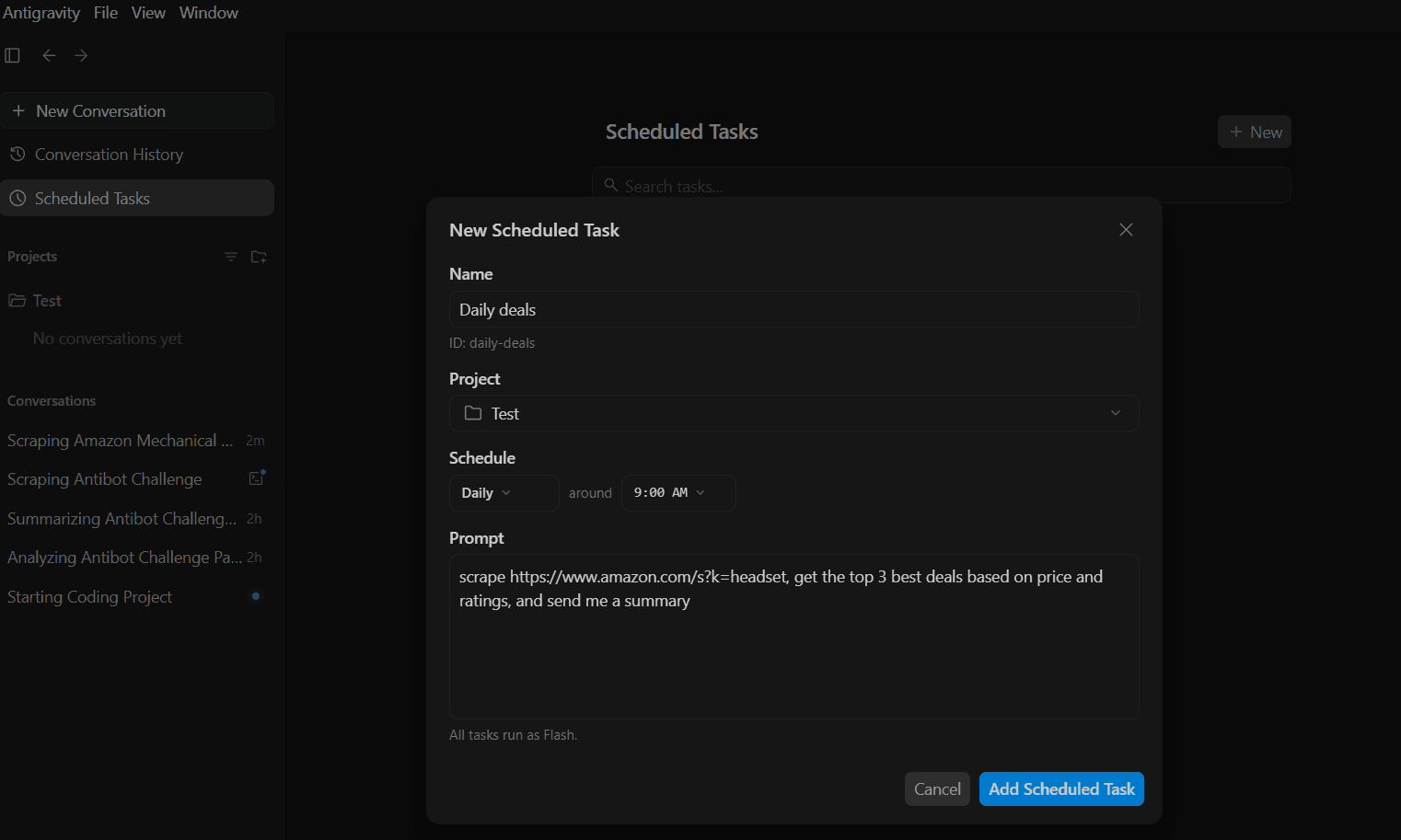
- Via the
/schedulecommand: Type/schedulein any conversation to set it up inline. For example, to track competitor job postings daily at 8:00 AM:
Disable ZenRows Tools Temporarily
If you want to keep the server configured but stop Antigravity from using specific tools, usedisabledTools:
JSON
JSON
Troubleshooting
ZenRows Tools Not Appearing After Saving the Config
- Confirm the file is saved to
~/.gemini/config/mcp_config.json. - Restart Antigravity to force a config reload.
- Check that
"disabled"is not set totruein the server block.
Agent Not Using ZenRows MCP
Antigravity may reach for a built-in tool instead of ZenRows. Instruct it to use ZenRows explicitly in your prompt:Scraping Returns Empty or Blocked Content
Check that your ZenRows API key is valid and active in the ZenRows dashboard. If the key is correct, try explicitly specifying JavaScript rendering in your prompt as shown above.Model Error Due to Quota or Rate Limit
If you encounter quota or rate-limit errors, the issue is with your LLM provider, not ZenRows. Switch to a model with a higher quota, or wait for the limit to reset. Claude Opus and Sonnet tend to handle MCP tool call sequences more reliably. You can switch models via the model selector in the Antigravity interface without restarting.JSON Syntax Error on Startup
The config file must be valid JSON with no trailing commas or comments. Run it through a validator if Antigravity fails to load the server.Frequently Asked Questions
Is ZenRows in the Antigravity MCP Store?
Is ZenRows in the Antigravity MCP Store?
No. The MCP Store lists Google-curated integrations. ZenRows is added manually via the config file as shown in this guide.
Can I use the remote HTTP version of ZenRows MCP instead?
Can I use the remote HTTP version of ZenRows MCP instead?
Yes. If you prefer not to install the local Node.js package, use the remote
serverUrl approach instead. Both options expose the same tools:JSON
Can I connect multiple custom MCP servers alongside ZenRows?
Can I connect multiple custom MCP servers alongside ZenRows?
Yes. Add each server as a named block inside
mcpServers:JSON
Is there a cost to using ZenRows MCP with Google Antigravity 2.0?
Is there a cost to using ZenRows MCP with Google Antigravity 2.0?
The ZenRows MCP server is free to connect. Each tool call is billed against your ZenRows subscription.
scrape calls use Universal Scraper API credits, and browser_* calls use Scraping Browser credits. Monitor usage via your ZenRows Analytics page.Does ZenRows work with Gemini and ChatGPT models in Antigravity?
Does ZenRows work with Gemini and ChatGPT models in Antigravity?
Yes. ZenRows MCP works regardless of which model you’ve selected. Antigravity supports Gemini, ChatGPT, and Claude models, and all of them can call ZenRows tools. That said, Claude Opus and Sonnet tend to handle MCP tool call sequences most reliably.
Can I use ZenRows MCP per project only?
Can I use ZenRows MCP per project only?
Yes. In Antigravity, each project has its own isolated settings. Click the settings gear icon next to your project in the left navigation bar, go to Project Settings, and configure which MCP tools are allowed for that project. This lets you enable ZenRows only where you need it.
Will ZenRows work with Antigravity's /browser command?
Will ZenRows work with Antigravity's /browser command?
They serve different purposes.
/browser launches Antigravity’s built-in Chrome debugging session for interacting with pages you control locally. ZenRows is for fetching external pages, especially those protected by anti-bot systems, without needing a local browser. Use /browser for local development testing and ZenRows for live web data extraction.Does the ZenRows config carry over to the Antigravity IDE?
Does the ZenRows config carry over to the Antigravity IDE?
Yes. The Antigravity 2.0 desktop app and the Antigravity IDE share the same config file at
~/.gemini/config/mcp_config.json. Adding ZenRows here makes it available in both without any additional configuration. The Antigravity CLI uses a separate config path and requires its own setup.